Tac Editor
Use the Tac Editor to build custom missions, organize flights, place units, and plan routes. The guide is divided into seven parts, starting with the numbered interface overview and continuing with detailed editing instructions.
Guide structure
- Part 1: Interface Overview
- Part 2: Package and Flight
- Part 3: Aircraft Configuration
- Part 4: Flight Plans
- Part 5: Map Objects
- Part 6: Mission Settings
- Part 7: Saving and Test Flights
Part 1: Interface Overview
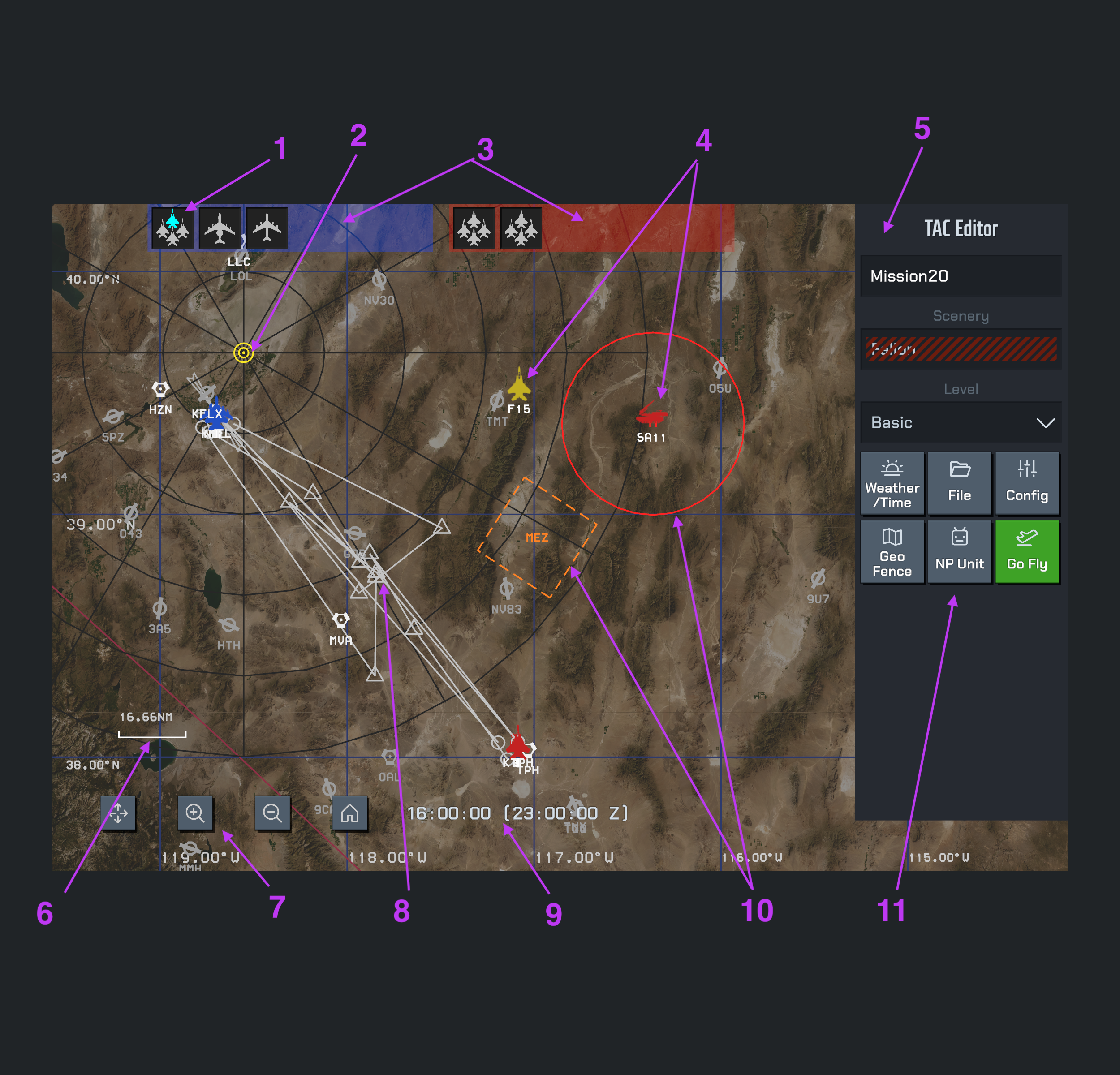
Open the image to view it at full resolution. Select a number below to jump to its explanation.
UI Index
1. Flight
A Flight is a flight of up to 4 aircraft. Each card at the top represents one flight; its aircraft symbols show the members. Select a card to inspect the flight and configure its aircraft.
2. Bullseye
Bullseye is a shared geographical reference point for reporting bearings and distances. The yellow concentric-circle symbol marks its position on the map.
The map's range rings are centered on Bullseye. Adjacent rings differ in radius by 20 nautical miles (20 NM).
3. Package
A Package groups flights on the same side. The blue and red strips at the top contain the flights in their respective packages. Select a package to view and manage its flights.
4. Additional Non-Player Units
These are additional AI-controlled units outside the Package/Flight structure. The example shows an independent aircraft and a SAM unit. Use NP Unit in the editor toolbar to manage these units.
5. Inspector
The panel on the right shows information and controls for the selected object. In this image, it shows the mission overview, including the mission name, scenery, and difficulty.
Scenery cannot currently be selected. Map region selection will become available in a future version when multiple regions are supported.
Double-tap an empty area of the map to return to the mission overview in the Inspector.
Inspectors by object
6. Map Scale
The scale bar shows the distance represented by its length at the current zoom level. NM means nautical miles; the example reads 16.66 NM. Use it to estimate distances on the map.
7. Map Toolbar
The lower-left toolbar contains four controls, from left to right:
- Move (four arrows): hold to move a selected map element.
- Zoom in (magnifying glass with +): enlarge the map.
- Zoom out (magnifying glass with −): show a wider area.
- Home (house): close the editor and return to the main screen.
Moving a map element
- Select the unit or element you want to move.
- Hold the Move button with your left hand.
- Keep holding it while dragging on the map with your right hand to reposition the selected element.
8. Flight Plan Route
The connected steerpoints show a flight's planned route. Select the flight to inspect its plan and edit its steerpoints. The route belongs to the flight and provides its navigation path.
9. Local and Zulu Time
The bottom display shows mission time in two forms: local time first, followed by Zulu time (UTC) in brackets with a Z suffix. In this example, 16:00:00 local and 23:00:00 Z refer to the same instant.
10. Geo Fence
A Geo Fence marks a tactical area or boundary on the map. It can be circular or polygonal, as shown by the circle and the polygon labelled MEZ. Use Geo Fence in the editor toolbar to manage these areas.
11. Editor Toolbar
These six buttons appear in the mission overview Inspector. They are explained below in screen order, from left to right across the top row, then the bottom row.
11.1. Weather / Time
Open the mission weather and time settings. Use this to set the conditions and time of day for the mission.
11.2. File
Open mission file operations: create a new mission, save the current mission, load a saved mission, or delete a saved mission.
11.3. Config
Open mission configuration and restrictions. Set whether loadout, livery, weather/time editing, and time freeze are allowed, and configure aircraft and loadout restrictions.
11.4. Geo Fence
Open the Geo Fence list to add, select, and edit tactical areas and boundaries.
11.5. NP Unit
Open the non-player unit list to add and manage units outside the packages. Select a unit to edit its details in the Inspector.
11.6. Go Fly
Launch the mission using the current editor setup. The mission must contain exactly one player-controlled aircraft, and the selected player aircraft module must be accessible. If launch fails, follow the displayed message to correct the setup.
Part 2: Package and Flight
Use a Package to organize flights, then open a Flight to configure its members and mission settings. The panels below follow this hierarchy.
Aircraft are organized as Mission → Package → Flight → Slot (one aircraft). Each Flight belongs to a Package and contains up to 4 aircraft.
Package
Select a Package at the top of the map to see its flights and package timing. The example package is named blue1.
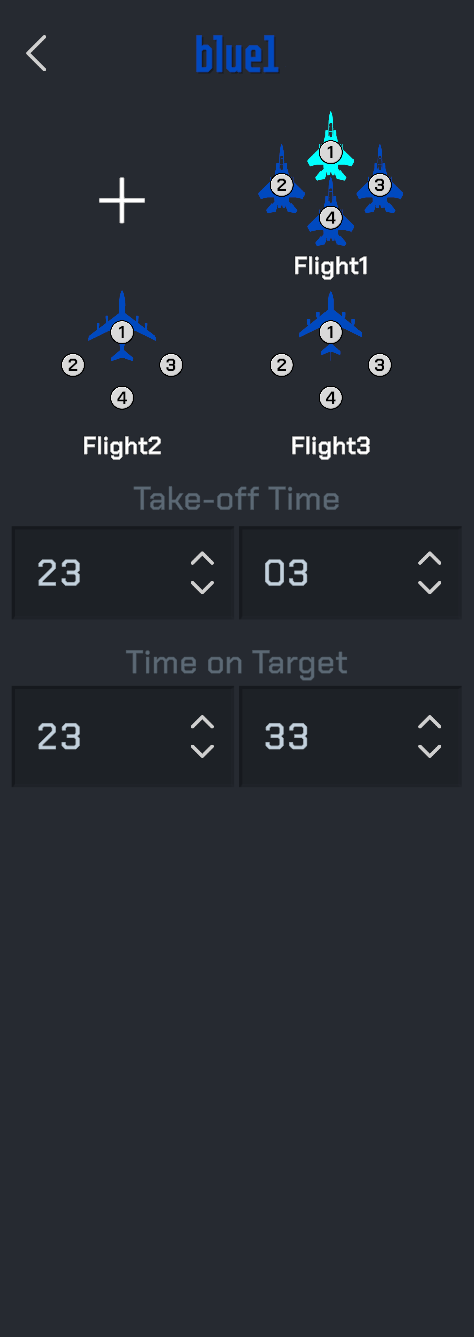
Fields and controls
- Name and Flight list: The package name appears at the top; tap it to rename the package. Flight1, Flight2, and Flight3 are listed below; member numbers identify aircraft within each flight.
- +: Add a Flight. Select an existing flight card to open its Flight Inspector.
- Take-off Time: The package takeoff time; the example shows 23:03.
- Time on Target (TOT): The package target arrival time; the example shows 23:33.
Flight
Select a Flight in its Package to view members and flight settings. The example is Flight1 with 4 aircraft.
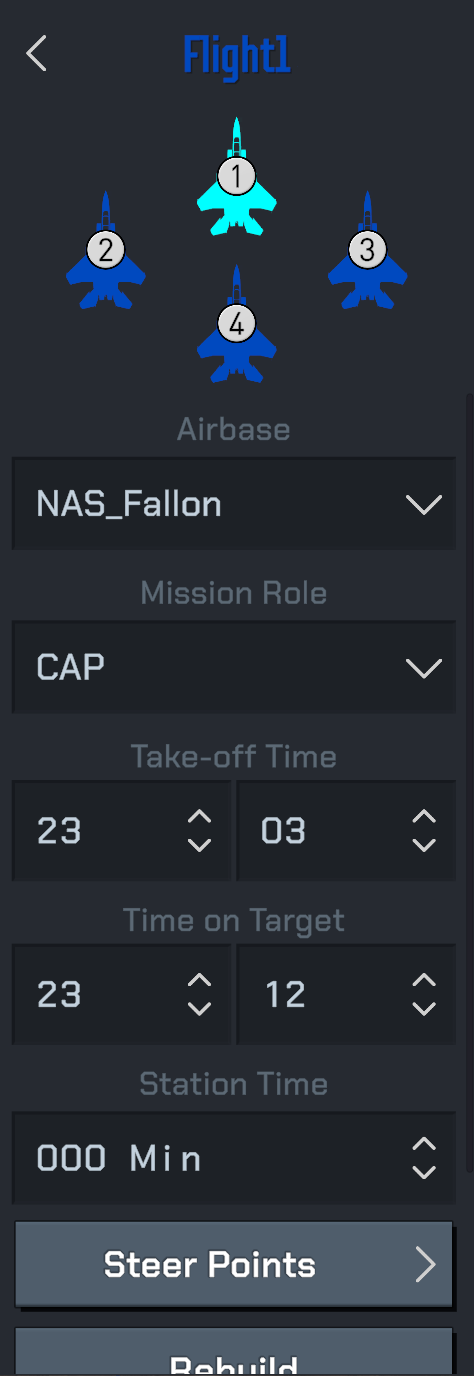
Fields and controls
- Member diagram: Shows aircraft and member numbers. Select a member to open its Slot Inspector.
- Airbase: The flight's base; NAS_Fallon is selected in the example.
- Mission Role: The flight's task; CAP is selected in the example.
- Take-off Time / Time on Target: Flight takeoff and target arrival times; the example shows 23:03 and 23:12.
- Station Time: The duration, in minutes, spent patrolling between two target-type steerpoints during a patrol task.
- Steer Points: Open flight route editing. Detailed route and steerpoint instructions belong in Part 4.
- Rebuild: Recalculate the Flight's Time on Target (TOT).
- Delete: Located below Rebuild. Delete the entire Flight definition, not just one aircraft Slot.
Patrol Example: Tankers and Early Warning Aircraft
To have a tanker or airborne early warning aircraft patrol a chosen location:
- Place two steerpoints at the intended patrol location and set both to the target type.
- In the Flight Inspector, set Station Time to the desired patrol duration in minutes.
- The aircraft will patrol between these two target-type steerpoints for the duration specified by Station Time.
View details: Slot · Steer Points
Part 3: Aircraft Configuration
Slot (Individual Aircraft)
A Slot represents one aircraft in a Flight. Select an aircraft in the Flight member diagram to open its individual Inspector.
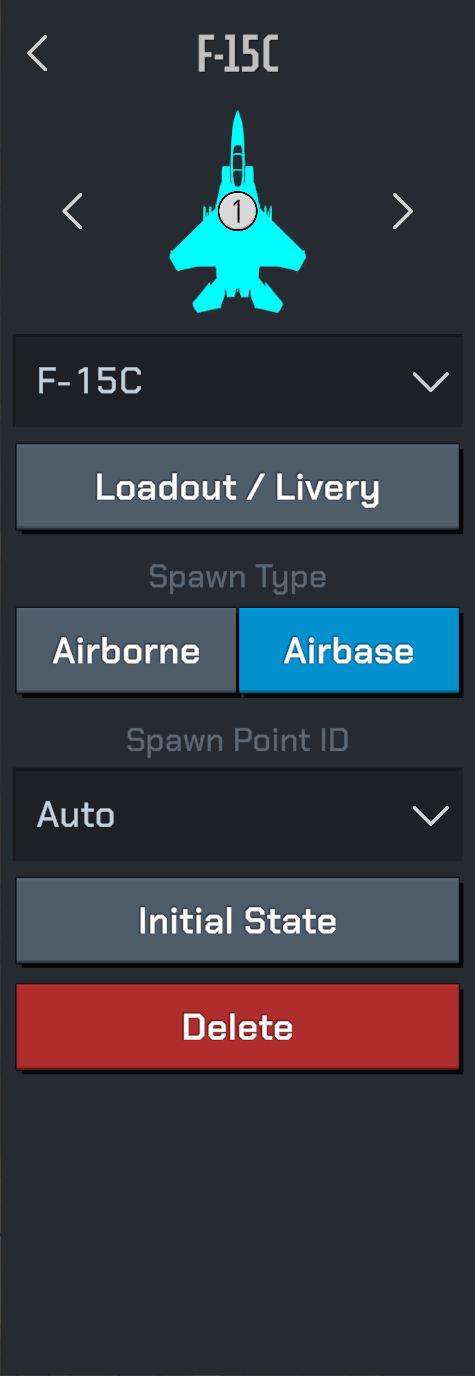
Fields and controls
- Aircraft type and member number: The top shows F-15C, member 1. Use the aircraft dropdown below to select the aircraft type.
- Loadout / Livery: Open weapon loadout and livery settings.
- Spawn Type: Choose Airborne or Airbase. Airbase is selected in this image.
- Spawn Point ID: Select the spawn point; the example shows Auto.
- Initial State: Open initial aircraft state settings.
- Delete: Delete the current aircraft Slot, not its whole Flight or Package.
Each flight contains up to 4 aircraft slots. A slot controls the actual spawned aircraft definition, formation number, IFF identity, livery, loadout, spawn state, and optional per-aircraft behavior overrides.
For a launchable mission, there must be exactly one player-controlled aircraft slot. If there is no player slot, the mission cannot start. If there are multiple player slots, the launch flow treats this as invalid mission setup.
When creating a new flight member, the editor defaults to an airbase spawn with a warm aircraft state and preloaded loadout. You can then adjust spawn type, fuel, weapons, and route.
Spawn Types
Aircraft and entities can spawn in different ways:
- Airbase: uses an airport and parking spot. This is the safest default for player flights.
- Airborne: uses latitude, longitude, altitude, true heading, and calibrated airspeed.
- Surface: used for ground, surface, and facility entities.
Current limitation: aircraft surface spawn is not implemented for normal aircraft slots. Use Airbase or Airborne for aircraft.
For airborne aircraft, heading is true heading: 0 means true north and values increase clockwise. For airbase spawns, the parking point controls the transform and initial ground state.
Part 4: Flight Plans
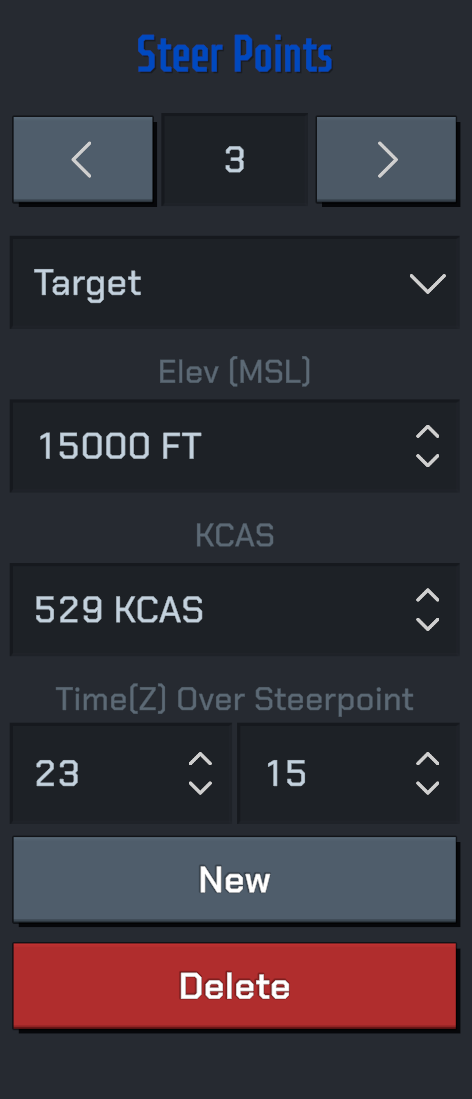
Select Steer Points in the Flight Inspector to edit the current flight's steerpoints. The image shows steerpoint number 3.
View details: Flight Inspector
Steer Points Inspector
Fields and controls
- Arrows and number: Use the arrows to switch steerpoints. The center shows the selected steerpoint number, 3 in this example.
- Steerpoint type: Use the dropdown to choose the type. Target is selected in the image.
- Elev (MSL): Planned altitude at the steerpoint, referenced to mean sea level (MSL), in feet (FT). The example is 15000 FT, not height above the ground.
- KCAS: Planned calibrated airspeed at the steerpoint, in knots. The example is 529 KCAS, not groundspeed or true airspeed.
- Time(Z) Over Steerpoint: Planned Zulu time (UTC) over the current steerpoint. The left and right fields are hours and minutes: 23:15 Z in the example, not a flight duration.
- New: Add a steerpoint.
- Delete: Delete the selected steerpoint, not the entire Flight.
For a tanker or early warning patrol, place two Target-type steerpoints at the patrol location and set the duration between them with the Flight's Station Time. To recalculate the Flight's TOT, select Rebuild in the Flight Inspector.
Patrol setup example · Moving map elements
Routes and Steerpoints
Flight routes are built from steerpoints. A route can represent departure, marshal, intercept, target, recovery, or training pattern geometry.
Good route practice:
- Start from the departure airbase or initial airborne point.
- Use clear spacing between steerpoints.
- Mark tactical target or push points deliberately.
- Avoid placing low-altitude routes through terrain unless that is the training goal.
- Review timing after changing route distance or cruise speed.
The navigation system and F-15C displays read mission route data, so clean steerpoints directly improve cockpit usability.
Part 5: Map Objects
Bullseye
Bullseye is the shared reference point used for tactical calls and avionics display references. Put it somewhere meaningful: near the operating area, range center, or a known reference feature.
Geo Fence
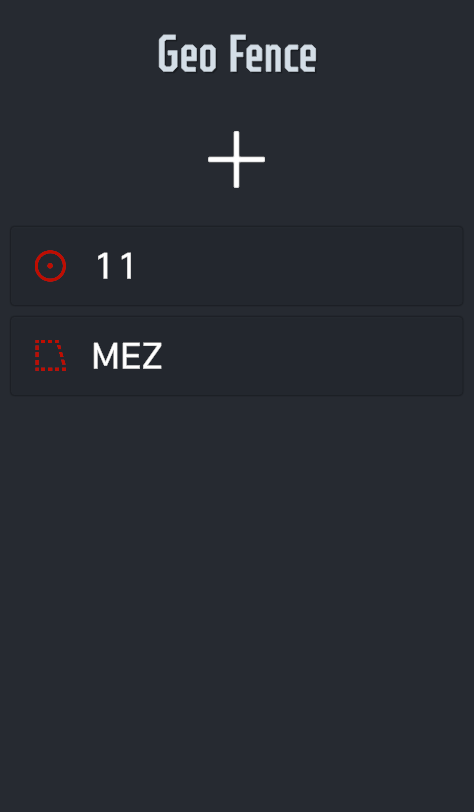
Open Geo Fence from the mission overview panel, then select a fence in the list. Circular and polygon fences have different geometry controls.
Geofences are map overlays and boundaries. Use them for:
- training boxes;
- restricted airspace;
- threat rings;
- target areas;
- ingress/egress corridors;
- no-fire or no-fly zones.
Geofences are useful even when they do not enforce gameplay rules. They make the tactical picture easier to understand.
Geo Fence List
Fields and controls
- +: Add a Geo Fence.
- List entries: The example contains a circle named 11 and a polygon named MEZ. The icons distinguish their shapes.
- Select an entry: Open that fence's Inspector to edit its role, shape, coalition, and geometry.
Circular Fence (Circle)
Fields and controls
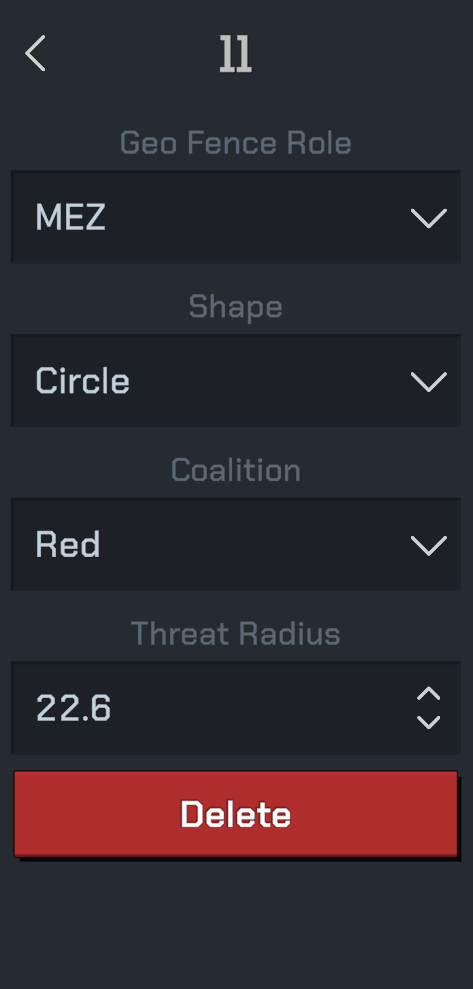
- Name: 11 at the top is the fence name.
- Geo Fence Role / Shape: The example role is MEZ and the shape is Circle. Name, role, and shape are separate information.
- Coalition: The fence's side; the example shows Red.
- Threat Radius: Set the circular area's radius.
- Delete: Delete the current fence.
Polygon Fence (Polygon)
Fields and controls
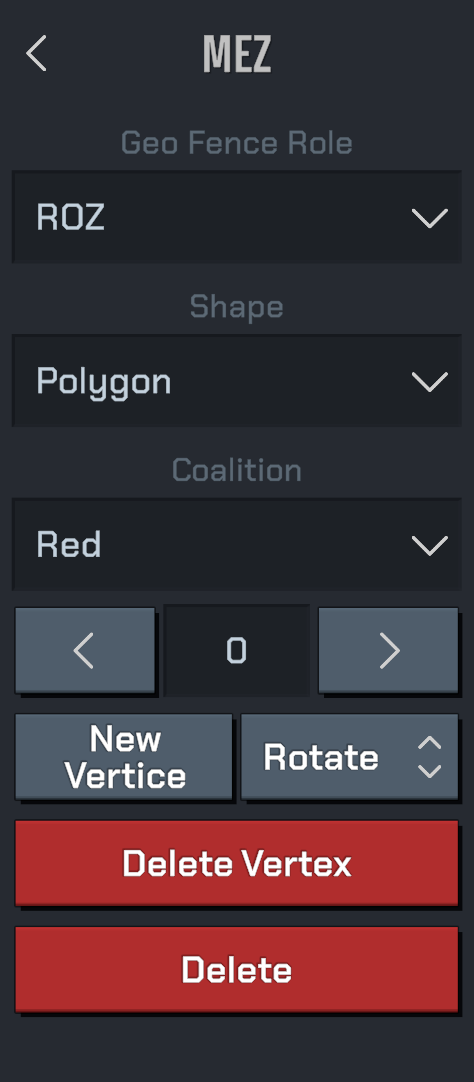
- Name / Geo Fence Role: The name is MEZ, but the selected role is ROZ. Do not confuse the name with the role.
- Shape / Coalition: The example shows Polygon and Red.
- Arrow buttons and number: Select the vertex to edit. The displayed vertex number is 0.
- New Vertice: Add a vertex.
- Rotate: Rotate the polygon.
- Delete Vertex / Delete: Delete Vertex removes the selected vertex; the bottom Delete button removes the entire fence.
To reposition map elements, use the Part 1 gesture: select an element, hold Move with the left hand, and drag with the right.
NP Unit List
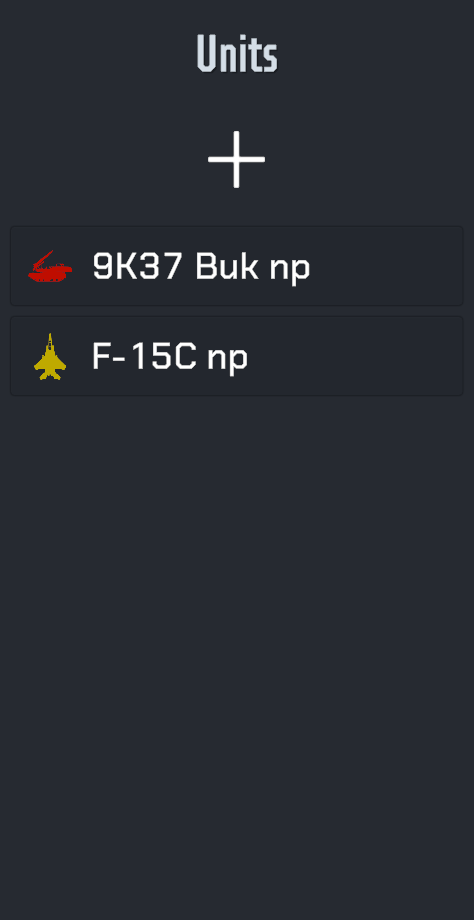
Open NP Unit from the mission overview panel to manage units outside the Package / Flight structure in the Units list.
Fields and controls
- +: Add a non-player unit.
- List entries: The example lists 9K37 Buk np and F-15C np, showing a SAM unit and an independent aircraft.
- Select an entry: Open that unit's Inspector.
Non-player entities can be added outside the package/flight structure. Use them for SAM sites, ground units, ships, facilities, range targets, or independent aircraft.
For aircraft that should fly a route or act as a formation member, prefer package flights. For static or tactical map objects, use non-player entities.
Part 6: Mission Settings
Mission Structure
A Tac Editor mission is organized in layers:
- Mission: title, difficulty, scenery, weather/time, blue and red airbases, bullseye, restrictions, and global options.
- Package: a coalition-level task group with takeoff and time-on-target references.
- Flight: a formation inside a package. A flight has a callsign, coalition, airbase, role, route, AI behavior, and aircraft slots.
- Slot: one aircraft in a flight. The player aircraft is also a slot.
- Steerpoints: route points used by the flight for navigation and timing.
- GeoFence: areas used for tactical boundaries, training boxes, threat zones, or reference overlays.
- Non-player entities: ground, surface, facility, or independent air units that do not belong to a package.
The editor saves these elements into a mission draft. When you press Go Fly, the draft is cloned into a runtime mission snapshot before the World scene is loaded.
Mission Settings
Mission-level settings define the environment and what the player may change before launch.
Key fields include:
- Mission title: shown in editor and mission lists.
- Scenery: the terrain and airbase database context, shown read-only in the mission Inspector.
- Weather / time: applied when the World scene starts.
- Blue and red airbases: defaults used when new flights or slots are created.
- Bullseye: shared tactical reference point used by avionics and tactical displays.
- Configuration permissions: whether the player may change loadout, livery, or weather.
Confirm the current scenery and set airbases early. Many later defaults, including flight airbase and generated steerpoints, depend on them.
Mission Restrictions
Mission restrictions control what aircraft and loadouts are allowed. Current restriction categories include aircraft generation/era and loadout or weapon guidance type, such as IR missiles, semi-active radar missiles, active radar missiles, passive radar missiles, and TV-guided weapons.
Use restrictions to keep a training mission focused. For example, a guns-only merge should restrict missiles; a BVR lesson should restrict the aircraft and weapons to the intended setup.
Part 7: Saving and Test Flights
Recommended Workflow
Build missions from the outside inward:
- Confirm the current scenery and the default blue/red airbases.
- Set mission title, skill level, weather, time, bullseye, and global options.
- Create blue and red packages.
- Add flights to each package and assign roles.
- Add aircraft slots, then choose aircraft type, spawn method, livery, fuel, and loadout.
- Build flight routes with steerpoints.
- Add geofences and non-player entities.
- Review restrictions and player access requirements.
- Save the mission, then use Go Fly to test it.
Iterate in small steps. A mission that launches successfully with one player flight is easier to debug than a fully populated scenario with many untested units.
Save, Load, and Go Fly
Use save/load to keep reusable mission drafts. Saved missions should be tested after major changes, especially when changing aircraft type, spawn type, route timing, or restrictions.
Go Fly runs the mission through the unified mission launch flow. Before loading the World scene, the game checks:
- mission data exists;
- exactly one player aircraft can be resolved;
- the player aircraft module is accessible;
- mission snapshot can be created;
- selected aircraft features, variants, and non-default livery packs are allowed.
If launch fails, simplify the mission and test again: one player aircraft, one airbase spawn, default loadout, default livery, then add complexity back step by step.
Practical Checklist
Before saving or flying:
- Mission has a clear title and scenery.
- Blue/red airbases are valid.
- Bullseye is placed near the tactical area.
- Exactly one player aircraft slot exists.
- Player aircraft uses Airbase or Airborne spawn.
- Each flight has a callsign, coalition, role, and route.
- Loadout and livery match mission permissions.
- Geofences and target areas are visually clear.
- Restrictions match the training objective.
- The mission has been tested from Go Fly at least once.