Touch UI
This page applies to iOS and Android touch devices.
Navigation + AA Mode
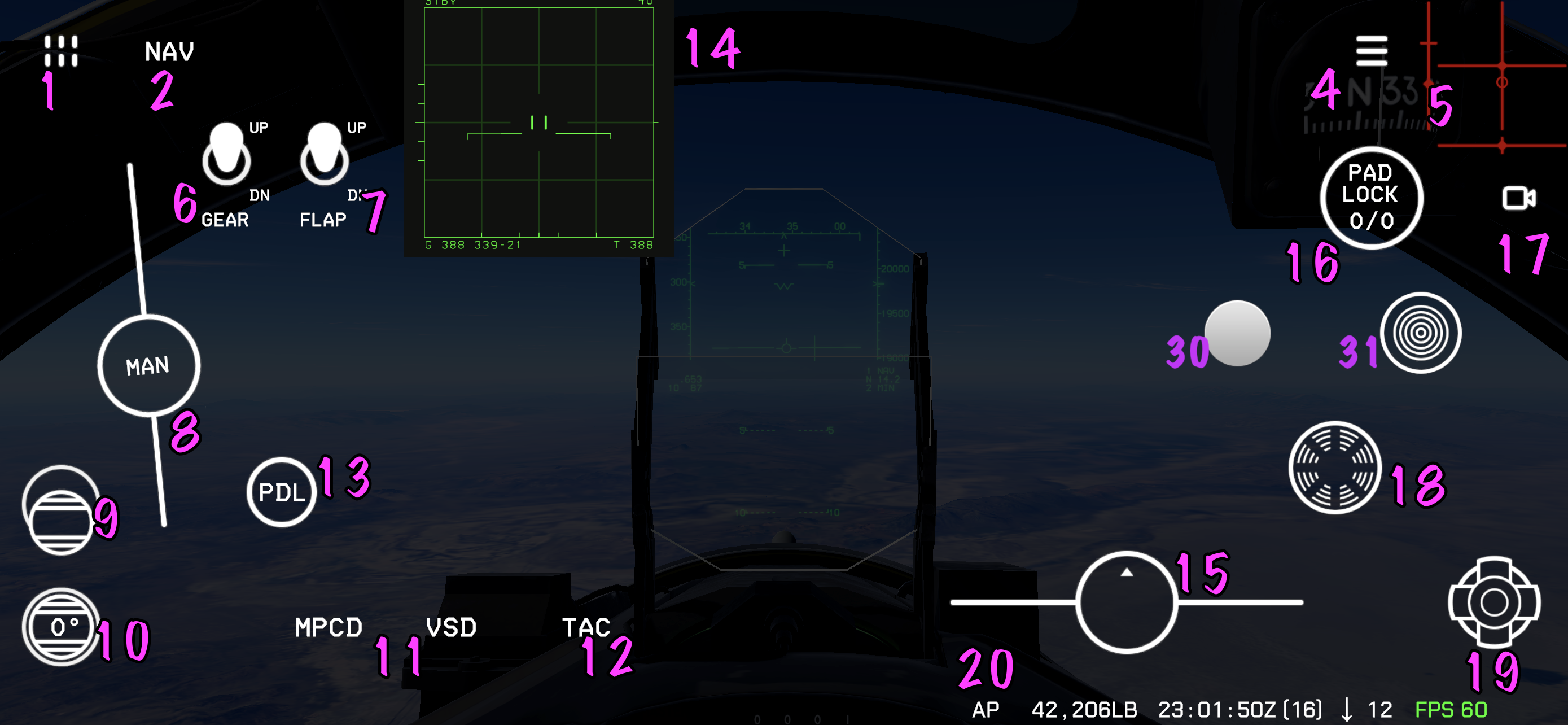
Navigation Mode
AA Mode
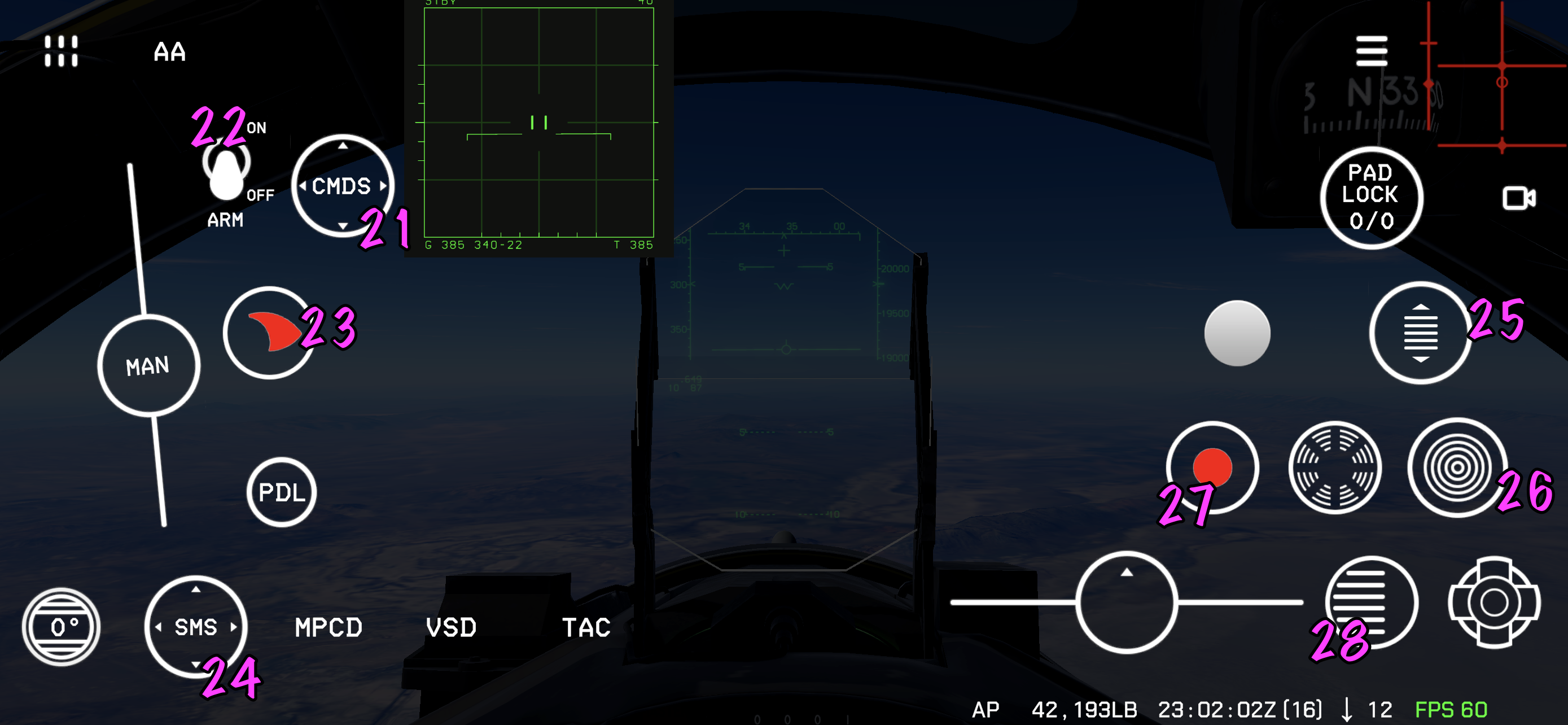
UI Index
| No. | Control | Primary use |
|---|---|---|
| 1 | Function Panel | Open the MAIN, NAV, HUD, and MISC function panels |
| 2 | Mode Switch | Switch between NAV and AA modes |
| 4 | Main Menu | Open aircraft setup, preferences, and mission options |
| 5 | Input Indicator | Show control inputs and trim positions |
| 6 | Landing Gear Switch | Extend or retract the landing gear |
| 7 | Flaps Switch | Extend or retract the flaps |
| 8 | Throttle | Adjust thrust; switch to single-engine throttle control |
| 9 | Throttle Mode Switch | Select manual, IAS-follow, or on-speed AoA throttle mode |
| 10 | Speed Brake Switch | Extend, stop, or retract the speed brake |
| 11 | Show MFD | Hold to focus the cockpit view on the VSD or MPCD |
| 12 | Show Tac Map | Show the in-flight tactical map |
| 13 | Paddle Switch | Hold to temporarily disconnect autopilot |
| 14 | Floating MFD | Monitor up to three floating MFDs without changing view |
| 15 | Rudder | Control rudder, nosewheel steering, and wheel brakes |
| 16 | Padlock | Lock the camera view onto a nearby entity |
| 17 | Camera Switch Menu | Cycle camera views or open the camera menu |
| 18 | Cursor | Move the VSD/SIT cursor and designate targets |
| 19 | Castle Switch | Select the active sensor (SOI) and manage display pages |
| 20 | Status Bar | Show FPS, wind, aircraft weight, time, and autopilot status |
| 21 | Chaff/Flare Release | Release chaff and flares |
| 22 | Master Arm Switch | Enable weapon firing |
| 23 | Gun Trigger | Fire the selected gun |
| 24 | Weapon Select Switch | Select weapon categories and cycle missiles |
| 25 | Antenna Elevation | Adjust radar antenna elevation |
| 26 | Coolie Switch | Manage track designations and PDT in TWS mode |
| 27 | Weapon Release | Release the selected missile or store |
| 28 | Auto Acquisition Switch | Toggle STBY/LRS, cycle auto-acquisition modes, or activate FLOOD |
| 30 | Touch stick | Control aircraft pitch and roll |
| 31 | Trim | Adjust aircraft trim |
Detailed Explanation
1. Function Panel

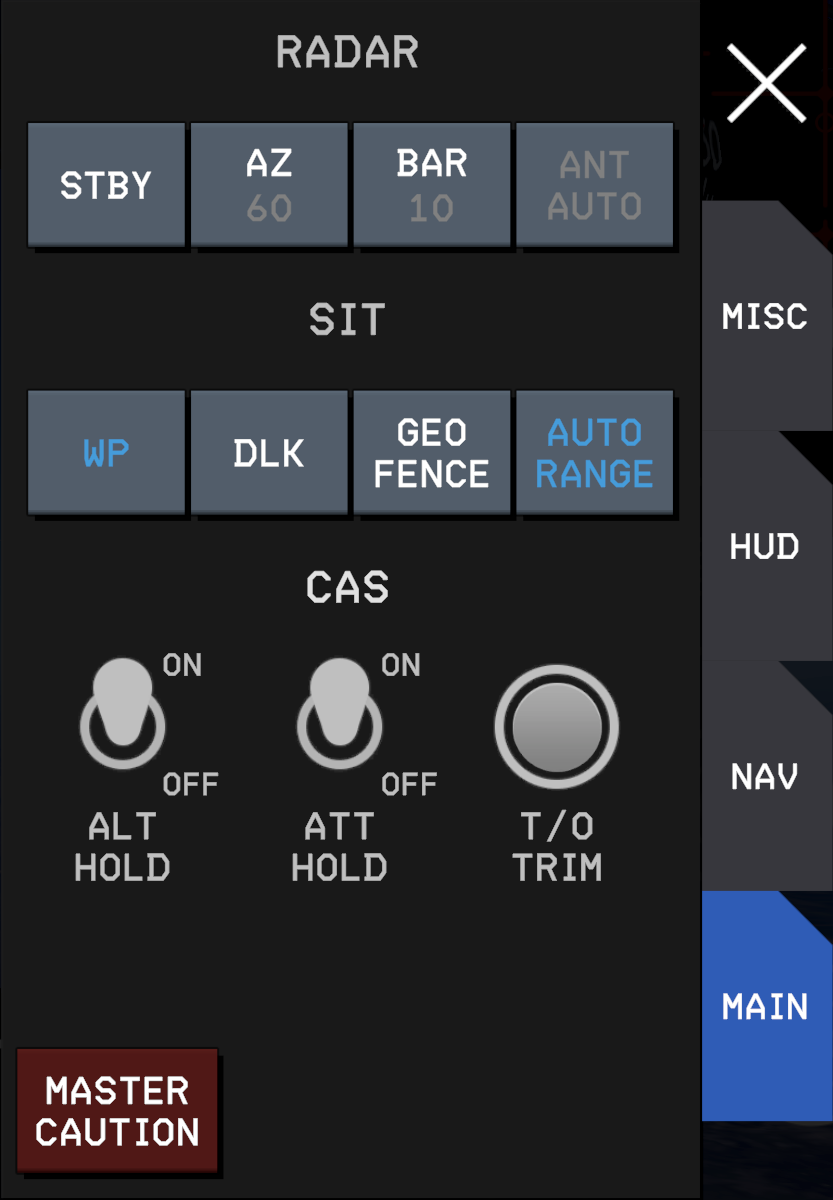
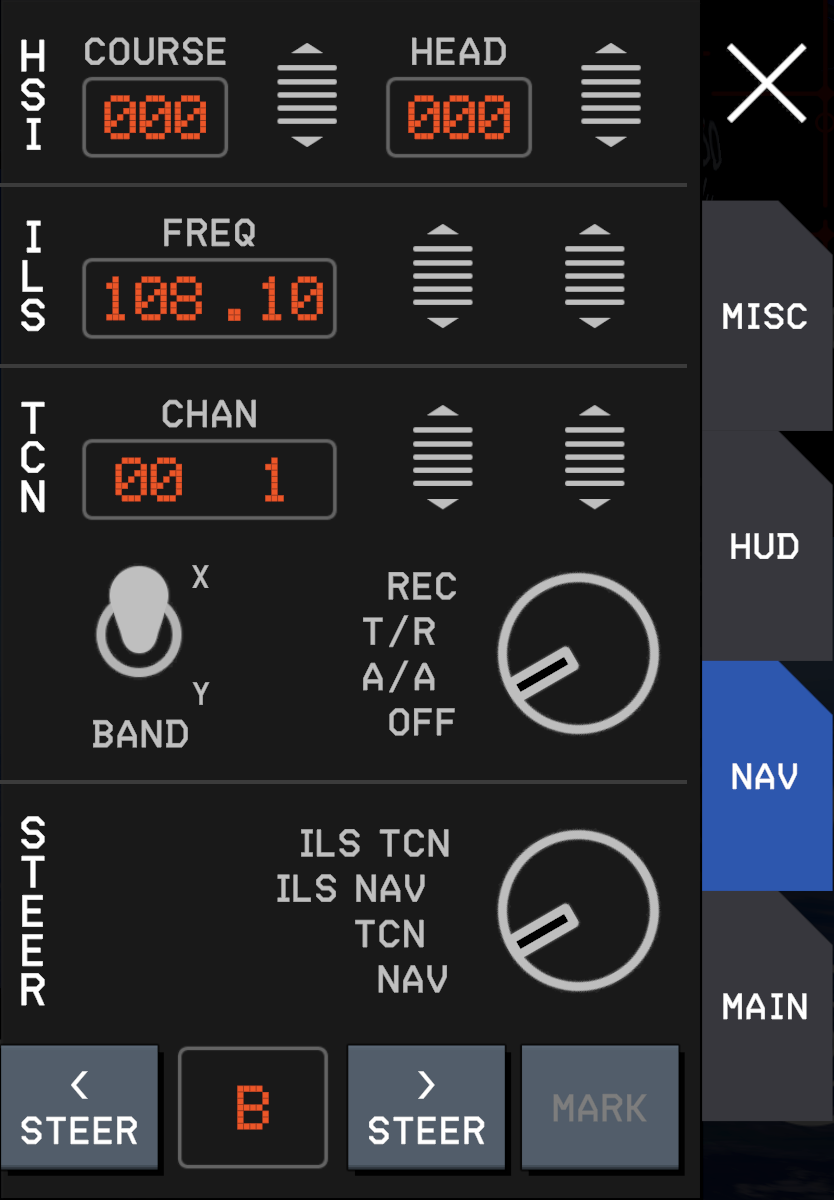
Long-press or double-tap to activate the temporary function touch panel. The panel has 4 tabs:
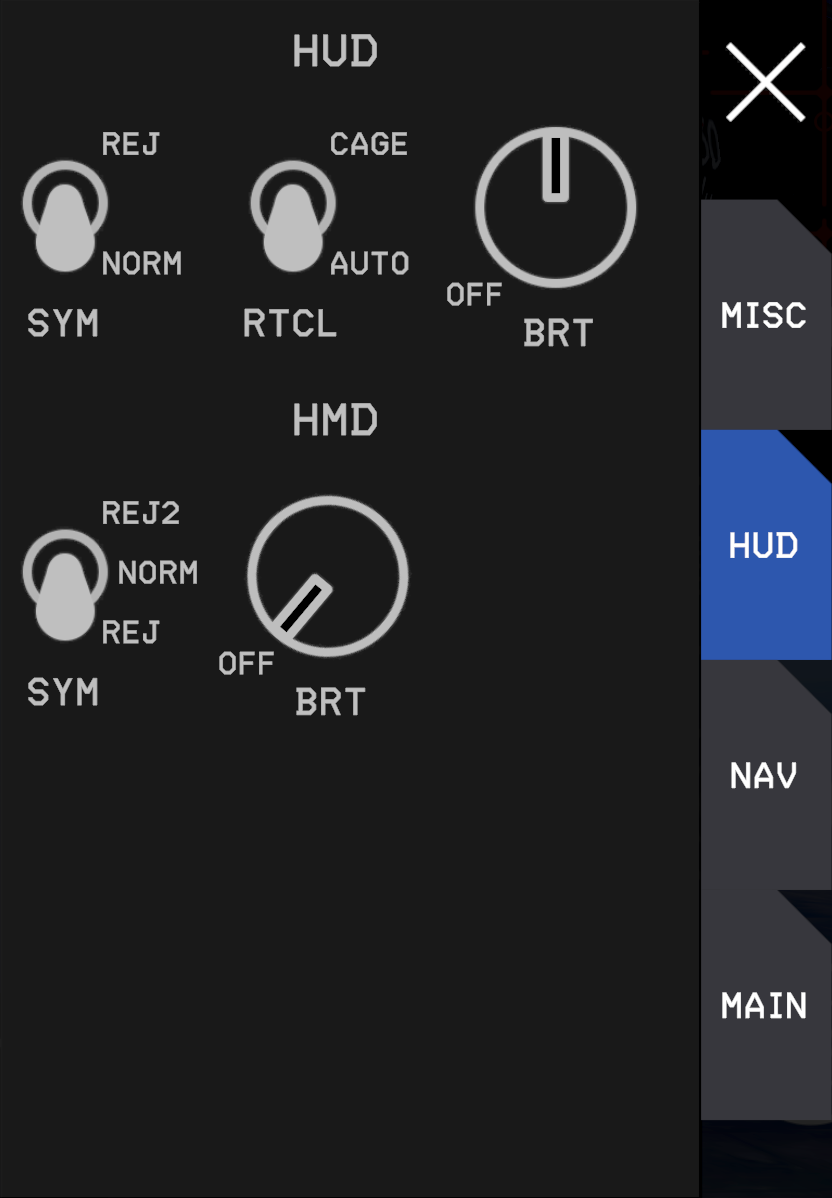
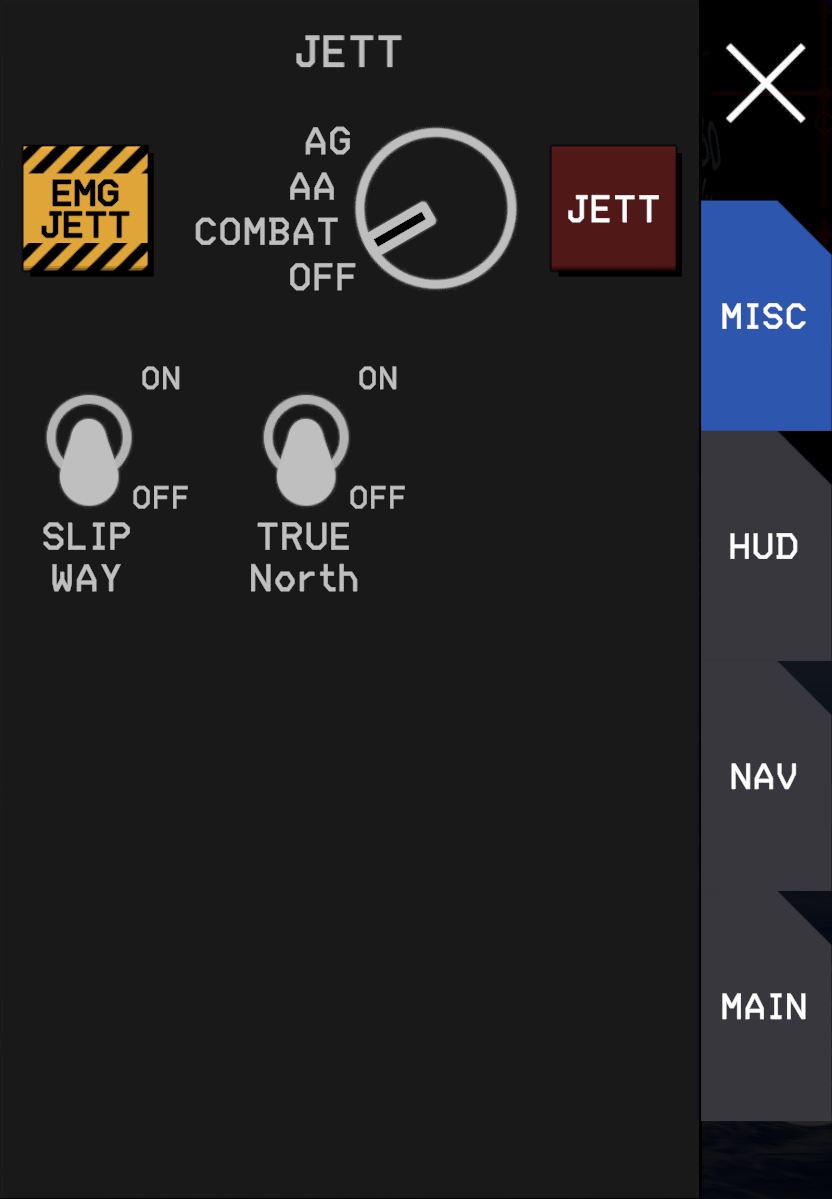
2. Mode Switch
Switch between Navigation mode and AA (air-to-air) mode.
3. UI Element Edit
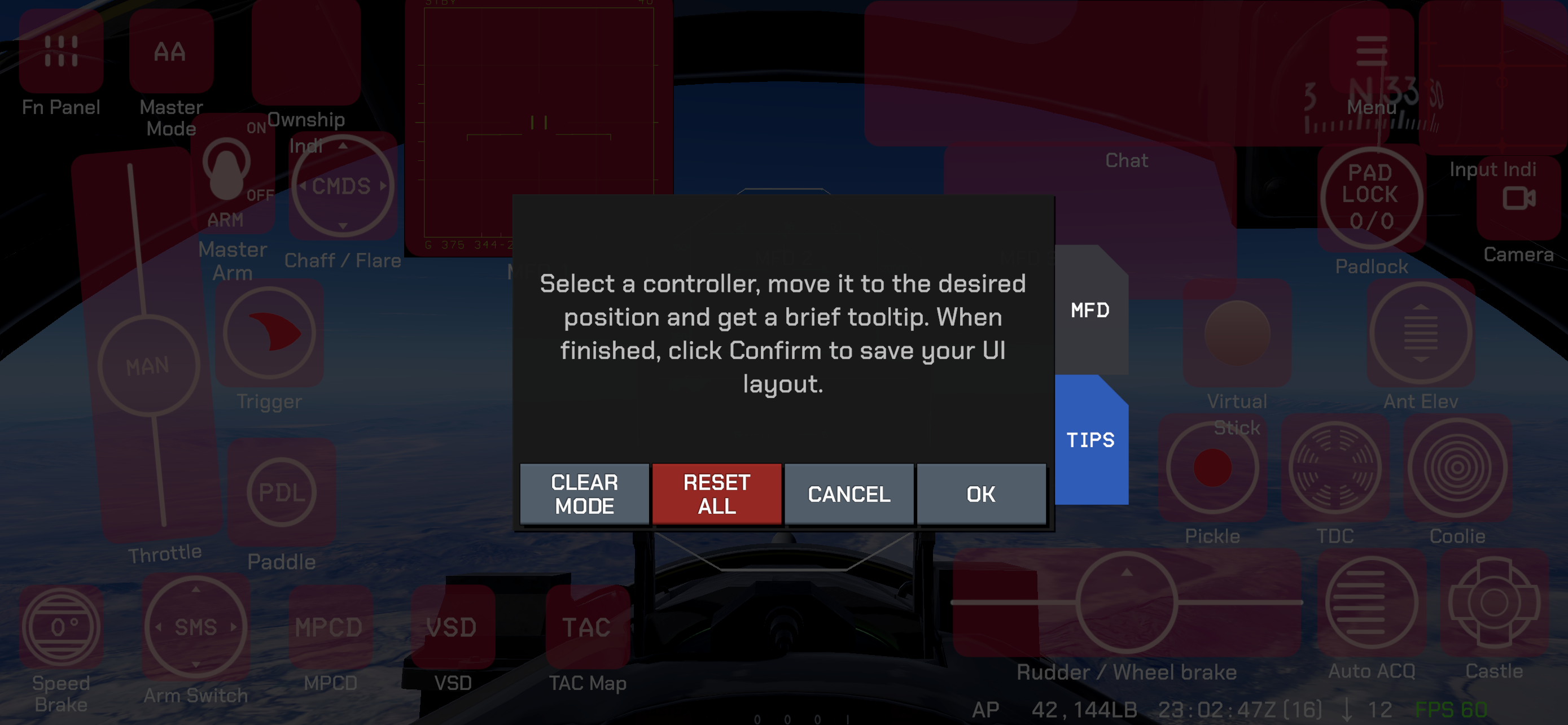
Enter UI element edit mode. In this mode, selecting a UI element shows a brief function hint. You can move UI elements to your preferred positions, and the system saves them persistently.
To enter quickly, tap an empty area of the screen four times in rapid succession. You can also enter this mode from the main menu.
4. Main Menu
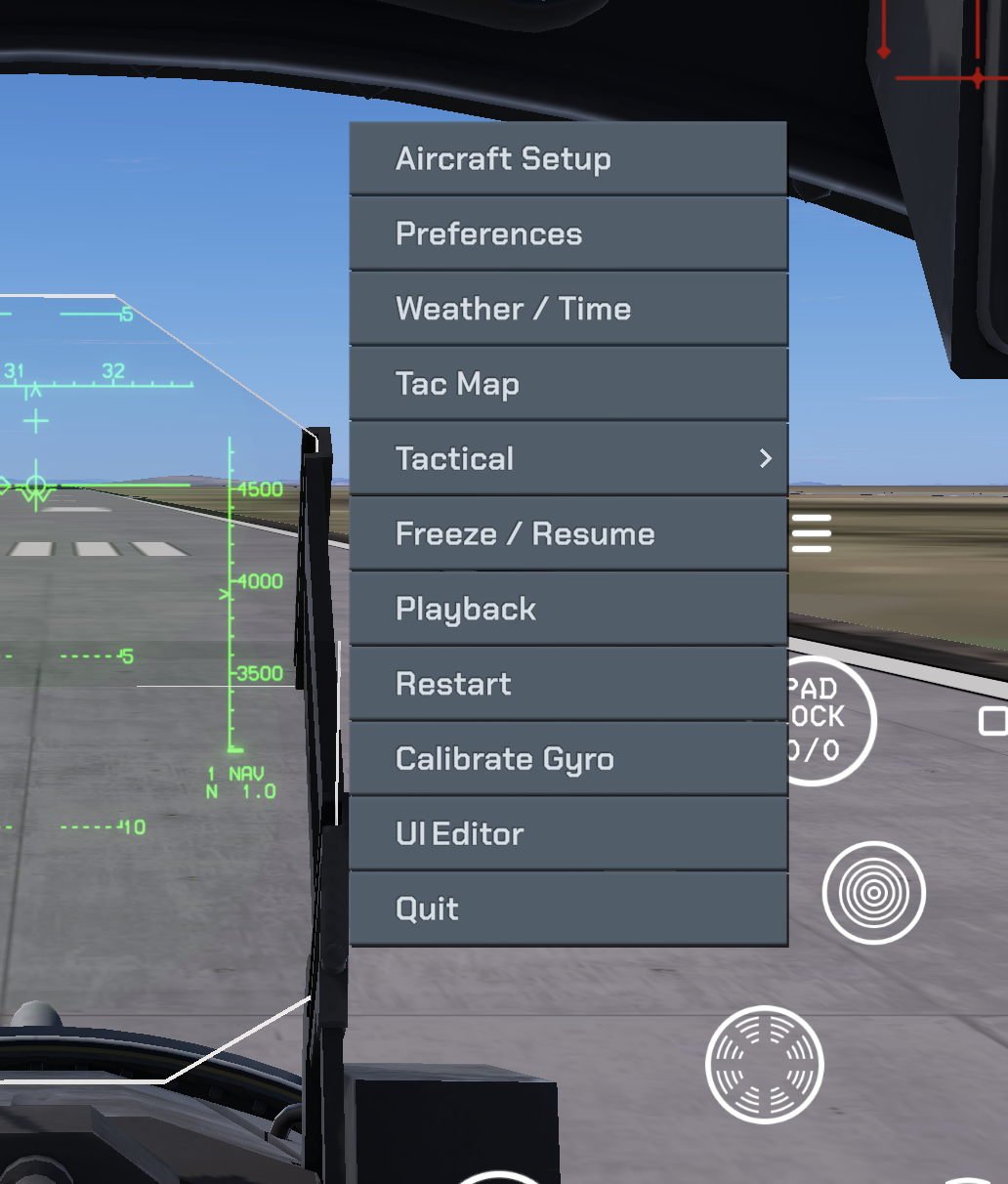
Open the main game menu, including:
Aircraft Setup: Open the player aircraft setup UIPreferences: Open the game preferences UIWeather / Time: Open weather and time setup UITac Map: Open tactical mapTactical: Open the tactical menu to communicate with friendly forces and issue commands to your wingmenFreeze / Resume: Toggle the dynamic pause system; it pauses flight dynamics while allowing other components to continue operatingPlayback: Enter replay modeRestart: Restart current missionCalibrate Gyro: Calibrate the gyroscopeUI Editor: Enter UI element edit modeQuit: Quit current mission
5. Input Indicator
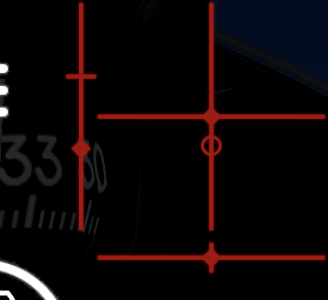
Displays current player input and flight-control output data, including pitch, roll, rudder, and throttle. This data is available in replay.
- The diamond represents your control input.
- The circle represents trim.
When flying the F-15C, the trim circle may move even when you are not making manual trim inputs. This is because the PTC automatically adjusts trim.
6. Landing Gear Switch
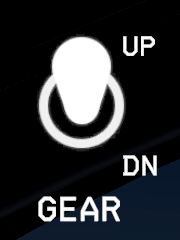
Controls landing gear up/down. Landing gear must be lowered below 250 knots; lowering above 250 knots will damage the gear.
7. Flaps Switch
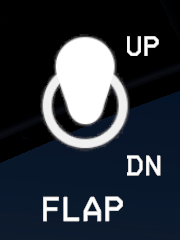
Controls flap up/down.
8. Throttle
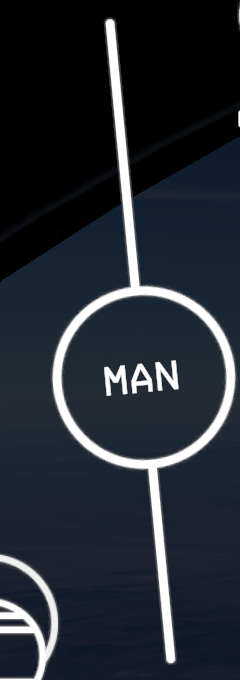
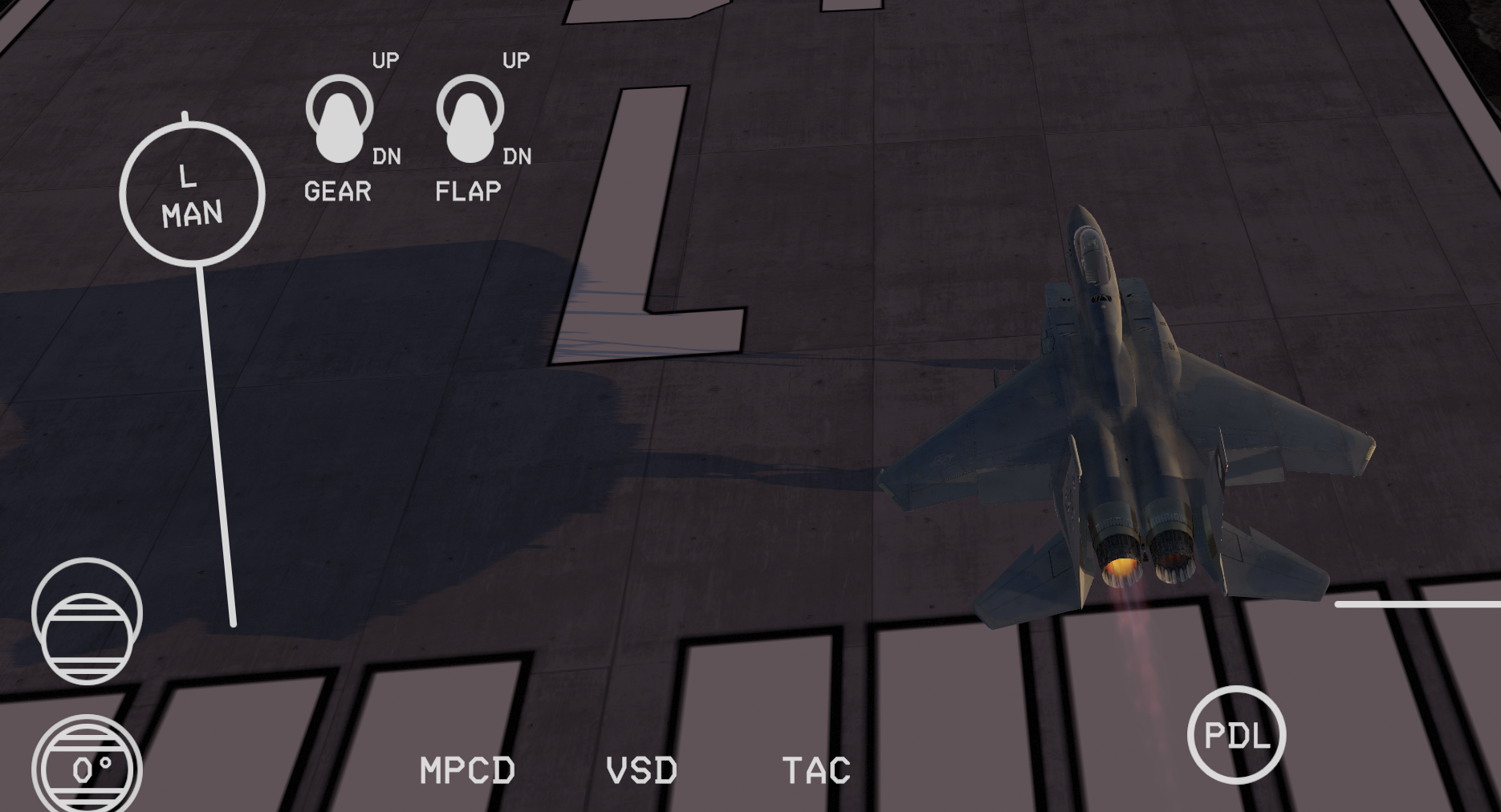
Throttle input range is from idle to max afterburner. Dragging continuously to the right for 2 seconds switches to single-engine throttle control mode.
9. Throttle Mode Switch
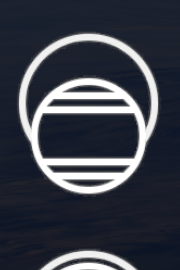
This is a three-position switch:
- Bottom: Manual mode.
- Middle: IAS follow mode. In this mode, move the throttle to set target IAS, and flight control follows automatically.
- Top: On-speed AoA follow mode. In this mode, throttle automatically holds on-speed AoA, useful for beginner landings.
10. Speed Brake Switch
This is a three-position maintained switch:
- Center: Speed brake stop.
- Up: Deploy speed brake.
- Down: Retract speed brake.
Its logic is similar to a car power-window switch, but it does not auto-return to center.
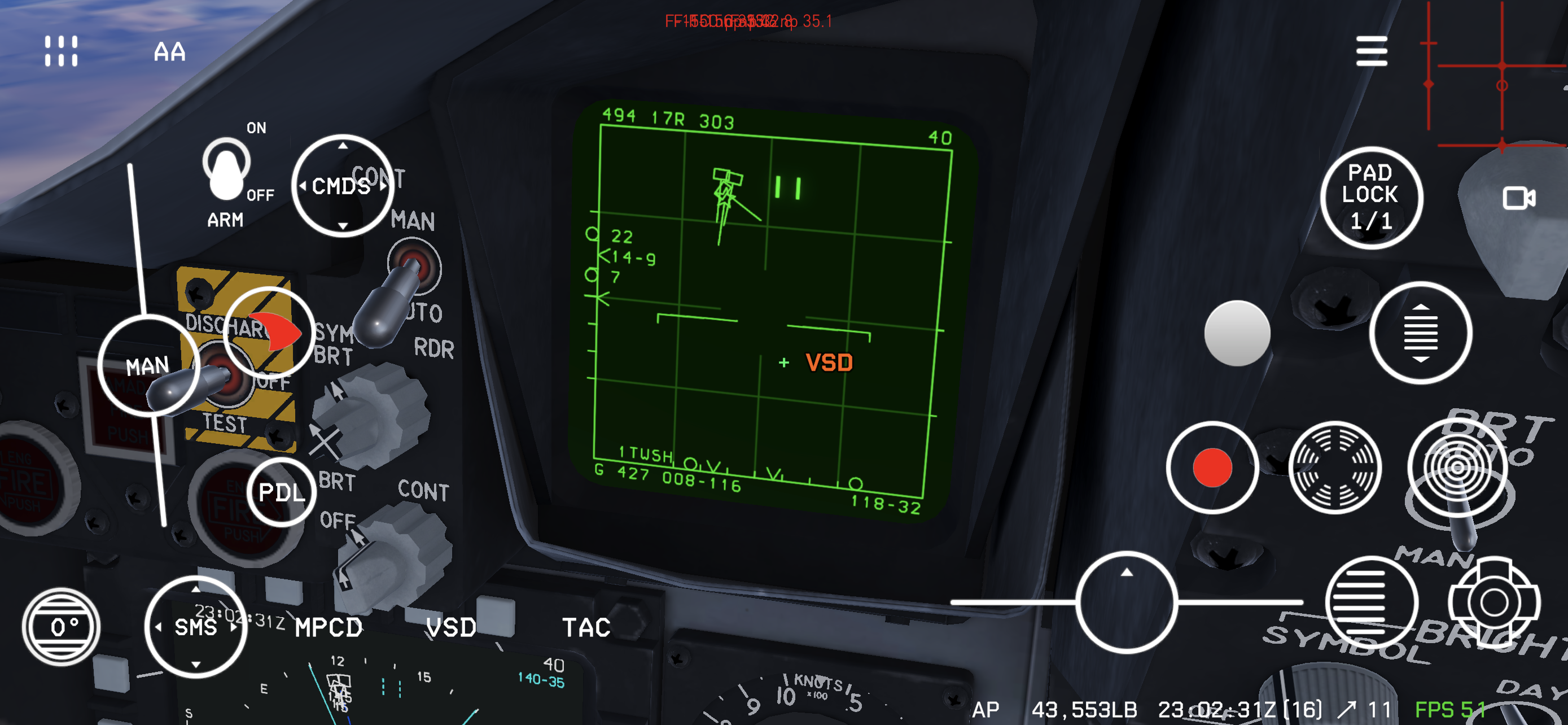
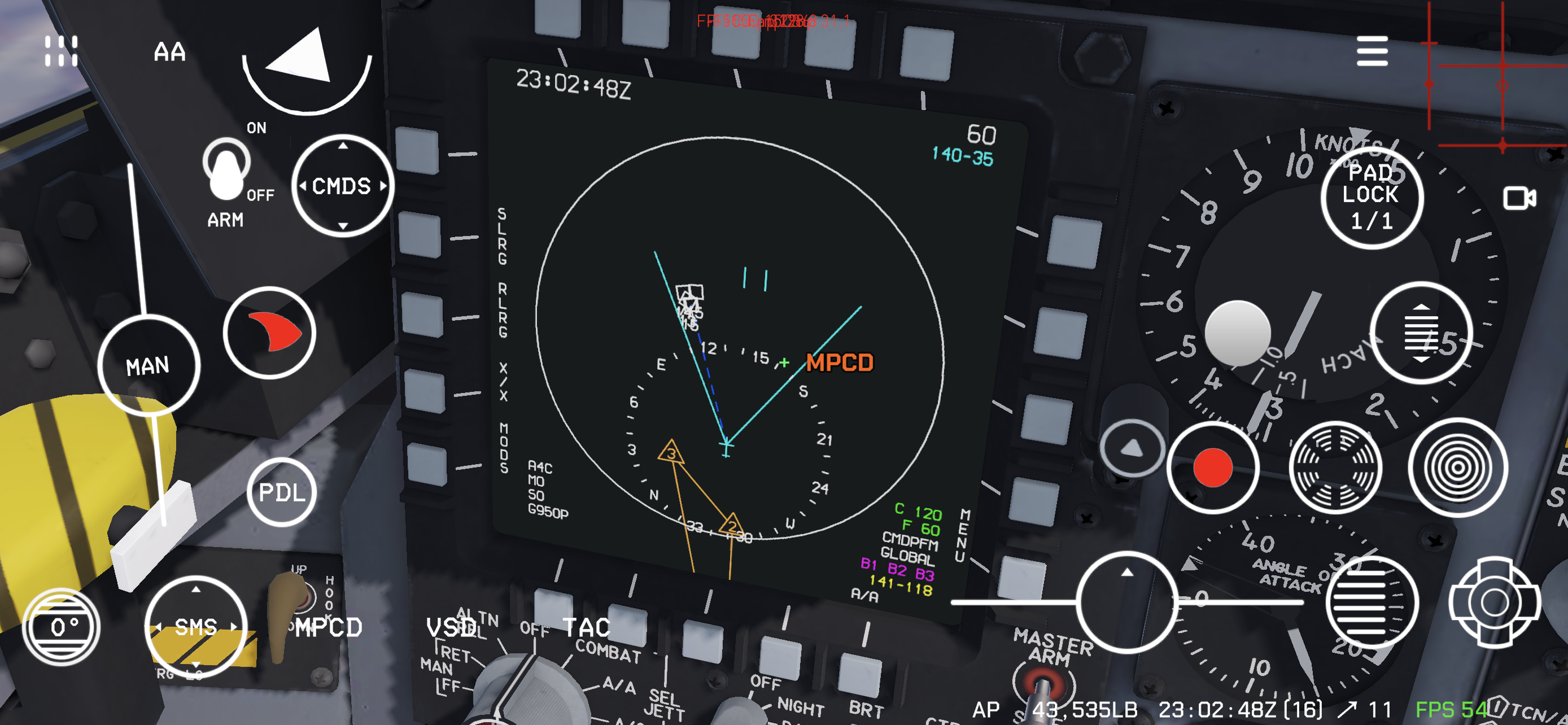
11. Show MFD
In cockpit camera view, holding either of these two buttons locks the camera to the corresponding display. At this time, your right thumb can operate the cursor and other function buttons. The two images below show the corresponding viewing angles.
12. Show Tac Map
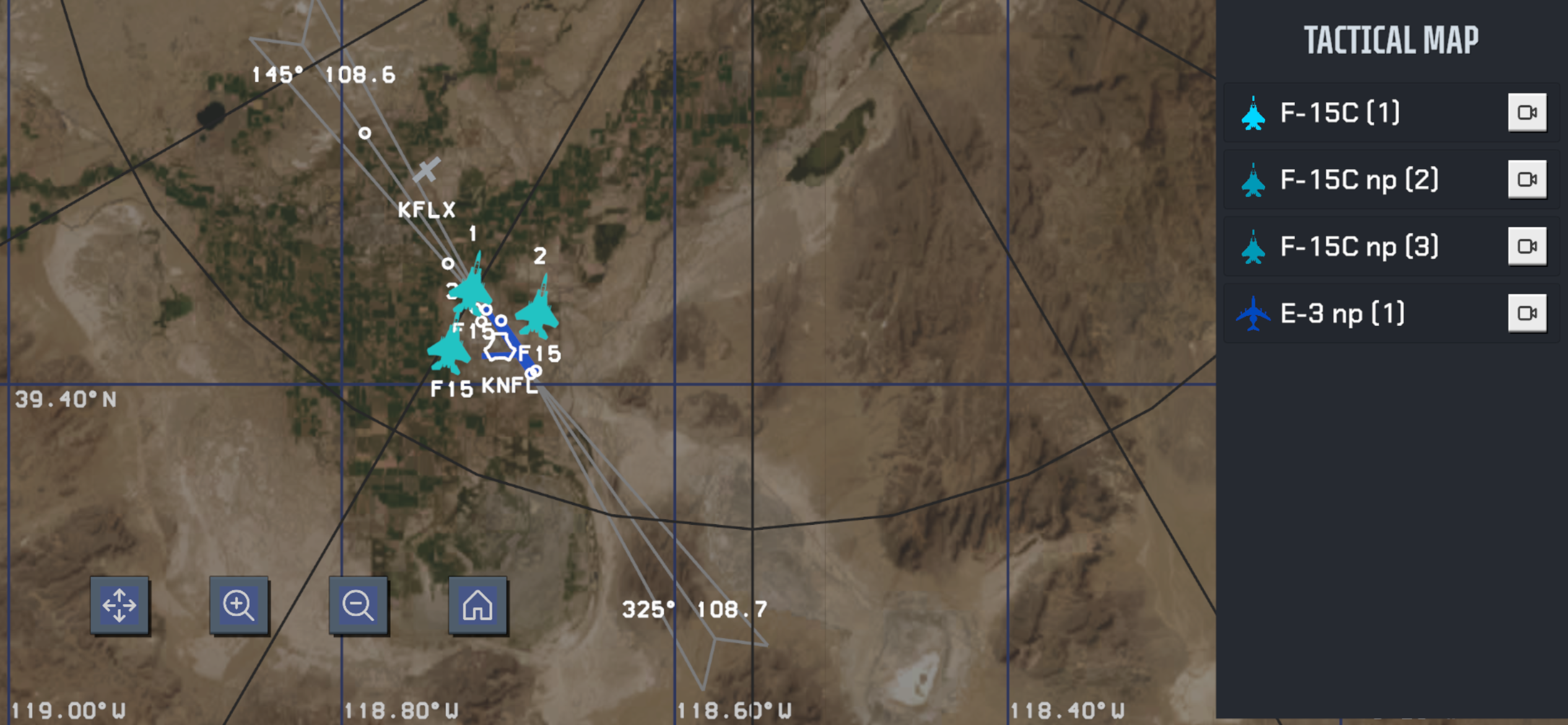
Show the runtime tactical map.
13. Paddle Switch

When autopilot is on, holding this button temporarily disconnects autopilot.
14. Floating MFD
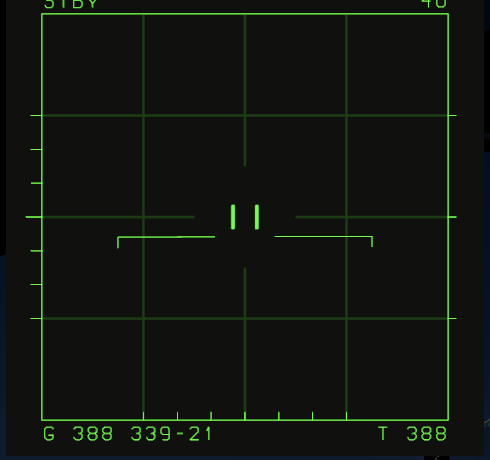
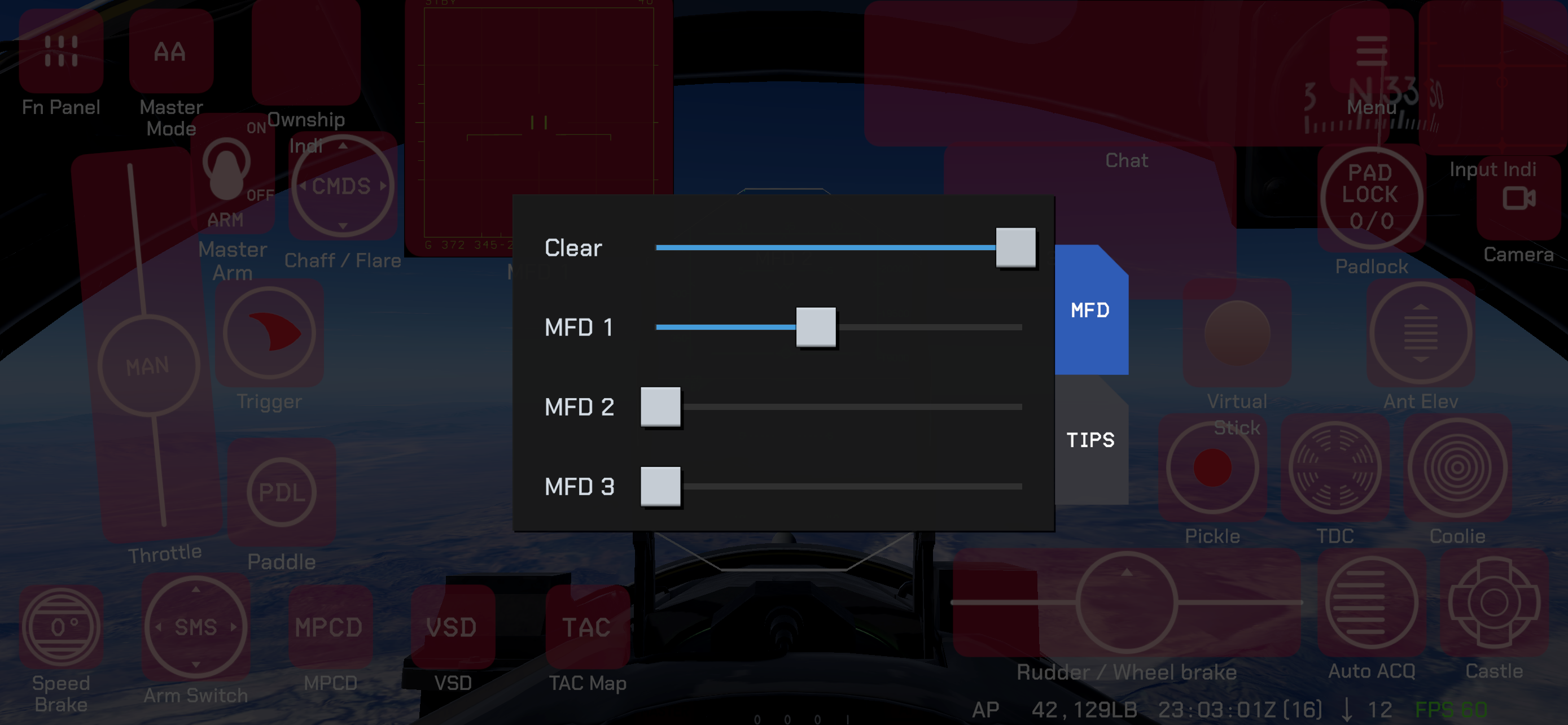
Displays MFD information in a floating overlay above the flight view, so you can monitor the display without changing the current camera view.
You can display up to 3 floating MFDs at once and adjust their size. On large-screen devices such as an iPad, consider displaying multiple MFDs to monitor different information simultaneously.
Floating MFDs remain visible and require continuous rendering, so displaying several at once increases the rendering load. Using multiple floating MFDs simultaneously is not recommended on older or less powerful devices.
15. Rudder
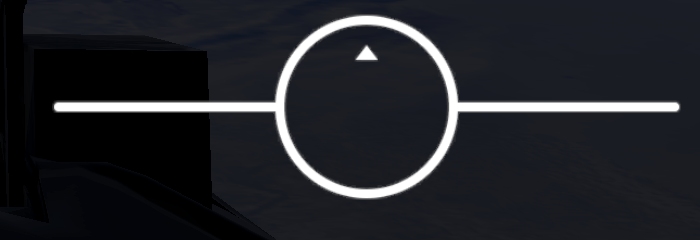
Drag left/right to control rudder and nosewheel steering. Drag up to control main gear wheel brakes, and the sensor or weapon cage/uncage switch.
16. Padlock
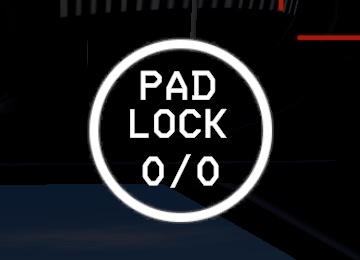
Used for automatic view lock. If other entities are near your aircraft, holding this button locks view to that entity. If multiple entities exist, hold padlock with the right hand and double-tap blank area with the left hand to switch to the next entity.
17. Camera Switch Menu
Used to switch camera positions:
- Single tap: Automatically switch to the next camera position.
- Hold: Open camera menu. Keep holding and drag to target camera position, then release to switch.
18. Cursor

Controls the cursor on VSD and SIT screens. Double-tap this button to manually designate a target.
19. Castle Switch
Used to manage displays and SOI (sensor of interest):
castleup: Switch SOI betweenVSDandSIT; subsequent cursor control applies to the current SOI.- When
VSDis SOI:castleright: SwitchMPCDto the stores management page.castleleft: Switch back to theSITdisplay page.
- When
SITis SOI:castleright: Switch to non-center mode.castleleft: Switch to expanded mode.castledown: Switch to flight-group mode (this mode fixes display range to 5 NM).
20. Status Bar

From right to left, the status bar shows:
- Game FPS
- Wind speed (knots)
- Wind direction (relative to line of sight)
- Player aircraft gross weight
- Game time
- Autopilot on indicator
21. Chaff/Flare Release
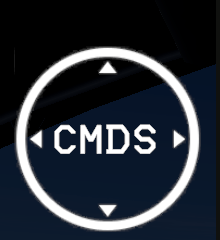
Release logic:
- Tap: Release 1
chaffand 1flare. - Flick up: Release 1
chaff. - Flick down: Release 1
flare. - Flick left: Release 5
chaffand 5flare. - Flick right: Release 10
chaffand 10flare.
22. Master Arm Switch
Before firing weapons, this switch must be set to ON.
23. Gun Trigger
When the currently selected weapon is gun, tap to fire.
24. Weapon Select Switch
Flick up/down to switch among AAM (advanced medium-range missile), MRM (medium-range missile), SRM (short-range missile), and GUN; flick left/right to cycle through missile entities.
25. Antenna Elevation
When radar is in LRW/TWS mode, this controls pitch reference for antenna scan.
26. Coolie Switch

In TWS mode, the Coolie switch controls track designations and the primary designated target (PDT).
- Up: Automatically designate all track files and assign a PDT, or cycle the PDT through all track files.
- Down: Cancel all designations.
27. Weapon Release
Releases the currently selected missile or store when master arm is ON and the selected weapon is ready. For air-to-air missiles, confirm target source, range cue, and aircraft attitude before pressing. This button is separate from the gun trigger.
28. Auto Acquisition Switch
Interaction behavior:
- Tap: Toggle the radar between
STBYandLRSmodes. - Swipe up: Cycle through the automatic-acquisition modes in this order:
SS→VS→BST→LR BST→SS. - Swipe up and hold: Activate
FLOODmode.
Automatic-acquisition modes:
SS— Supersearch: Scans a 20° × 20° area within the HUD field of view using a six-bar pattern and automatically locks the first detected target from 500 ft to 10 NM.VS— Vertical Scan: Scans from 5° to 55° above the fuselage reference line over 7.5° of azimuth, with automatic lock-on from 500 ft to 10 NM.BST— Boresight: Searches along the radar boresight line; place the target inside the 4° HUD steering circle. Acquisition range is 500 ft to 10 NM.LR BST— Long-Range Boresight: Searches along the radar boresight line using a 2.5° HUD steering circle, from 3,000 ft to 40 NM.
30. Touch stick
Drag the touch stick to control aircraft pitch and roll.
31. Trim
Use this control to adjust aircraft trim.