MPCD
The Multi-Purpose Color Display (MPCD) currently provides two pages: SIT, the situational awareness display, and AA, the air-to-air weapons page. SIT is displayed by default.
SIT brings together mission information, datalink reports, and tracks acquired by your radar. AA shows the aircraft's stores, selected station, gun ammunition, and countermeasure quantities.
Page index
Click any display screenshot to open the original-resolution image. Numbered explanations refer to the markings on each image.
SIT display and symbols
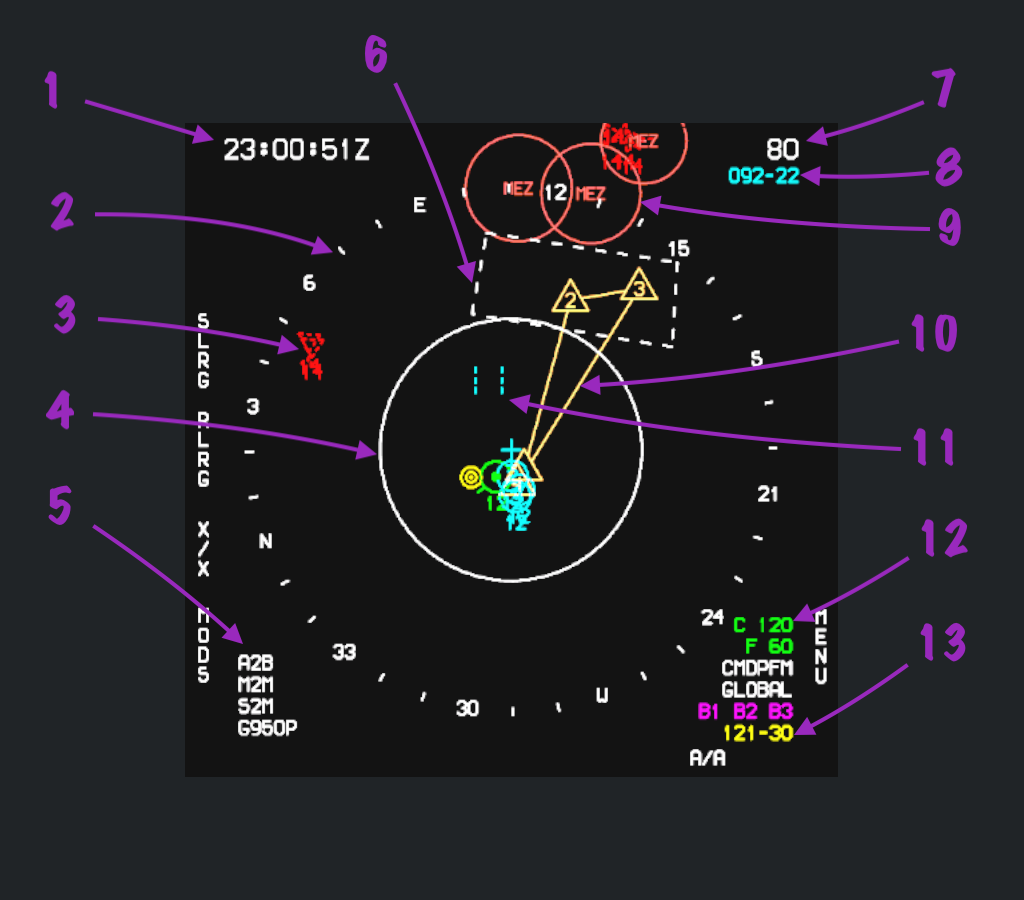
SIT presents a top-down view of the tactical situation, including aircraft, flight-plan waypoints, geofences, and range references.
Numbered symbols
1. Zulu time
The upper-left clock shows Zulu time (UTC). Here, 23:00:51Z means 23:00:51 Zulu.
2. Compass
The compass provides a bearing reference around ownship. Use its direction markings to read target bearings.
3. Datalink information
The red symbols show a hostile flight reported through the datalink. Their dashed outlines indicate datalink information. The stages from a datalink report to a correlated radar track are illustrated in Using SIT with VSD.
4. Half-range ring
The inner white ring marks half the display range shown in item 7. With 80 selected in this centered view, the ring represents 40 nautical miles from ownship.
5. Weapon information
The lower-left readout summarizes weapon information. The AA page provides the corresponding station-by-station view of the loadout.
6. Geofence
The dashed polygon is a geofence: an area defined in the mission. These boundaries help relate the tactical situation to areas set up in the Tac Editor.
7. Display range
In this centered view, the upper-right 80 is the distance from ownship to the top of the compass, in nautical miles. In Decenter mode, ownship moves lower on the screen; the range reference for that view is explained below.
8. Cursor coordinates from ownship
The cyan readout gives the cursor's bearing and range from ownship. 092-22 places the cursor on bearing 092°, 22 nautical miles from your aircraft. This readout follows the acquisition gate marked 11.
9. SAM engagement zone
The red circles show the engagement ranges of surface-to-air missile (SAM) systems. These zones are also a type of geofence. The example circles are labeled MEZ, which stands for Missile Engagement Zone.
10. Flight-plan waypoints
The connected yellow waypoint symbols show the waypoint sequence in your flight's flight plan.
11. Acquisition gate
The two cyan vertical bars form the cursor, or target acquisition gate. Dashed bars mean that the SIT gate is following the VSD cursor. When you give cursor control to SIT, the bars become solid and TDC movement controls the SIT gate directly. See Cursor control and display modes.
12. Countermeasure quantities
The green C 120 and F 60 readouts indicate 120 chaff and 60 flares remaining.
13. Cursor coordinates from Bullseye
The yellow readout gives the cursor's bearing and range from Bullseye, the common reference point. 121-30 places the cursor on bearing 121°, 30 nautical miles from Bullseye. The cyan upper-right readout instead uses ownship as its reference.
Mission information and display controls
Information from the Tac Editor
Much of the information displayed on SIT comes from the content you configure in the mission editor. The flight-plan waypoint sequence and geofences in the example can be compared directly with the mission setup below.
Configure missions according to your device's capabilities. Adding more units consumes more computing resources and memory.
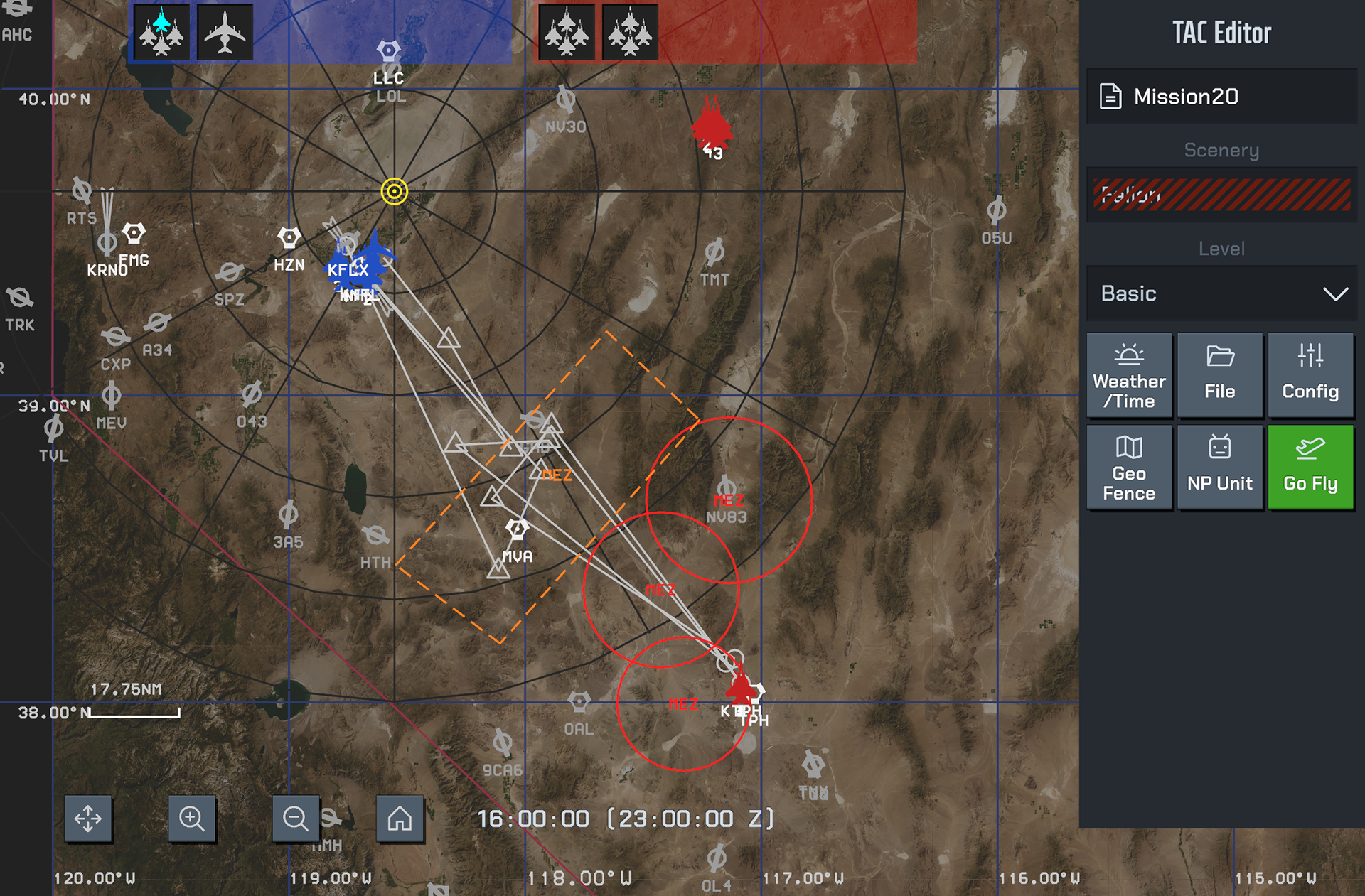
For mission setup, see Tac Editor.
Choosing what SIT displays
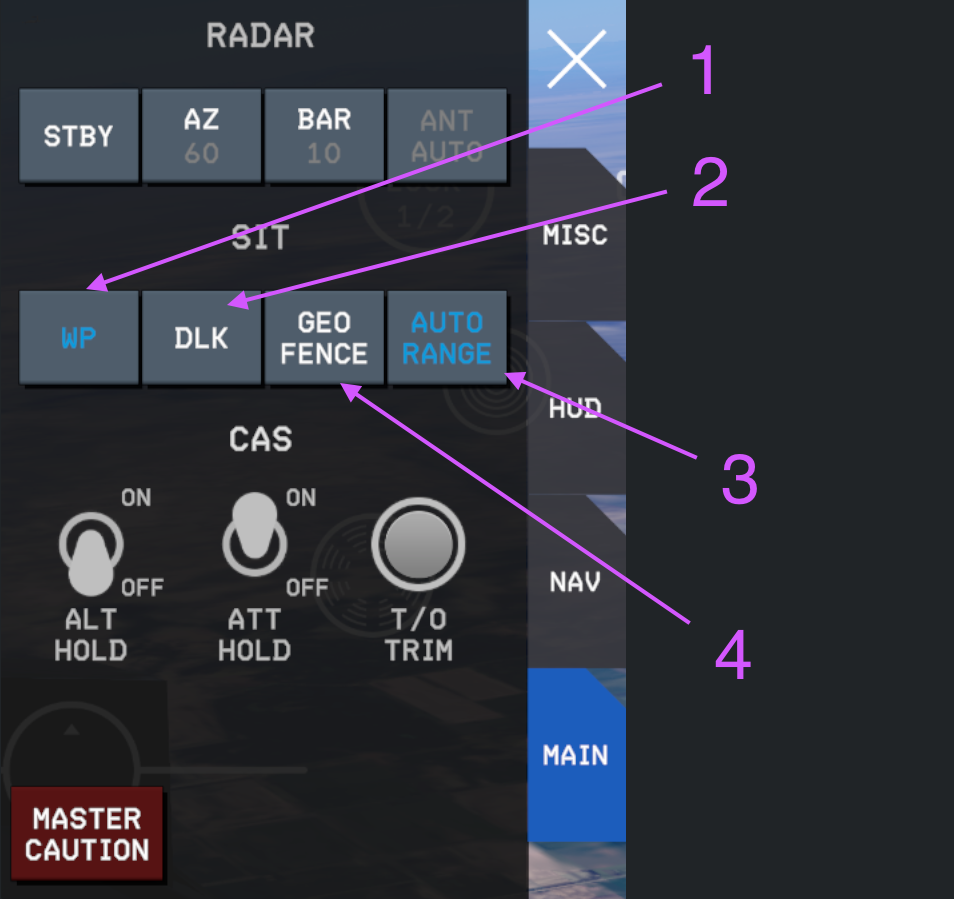
Open the Touch UI Function Panel and select MAIN. The SIT row controls the displayed information and whether its range follows VSD.
| No. | Control | Function |
|---|---|---|
| 1 | WP | Show or hide flight-plan waypoints. |
| 2 | DLK | Show or hide datalink information. |
| 3 | AUTO RANGE | Control whether SIT display range follows changes to VSD display range. |
| 4 | GEO FENCE | Show or hide geofences. |
Cursor control and display modes
Give cursor control to SIT
With the TDC assigned to VSD, move the Castle Switch UP to make SIT the active display (SOI). TDC movement now controls only the SIT acquisition gate, whose two bars become solid.
Castle UP switches cursor control between VSD and SIT. When the gate follows VSD again, it is drawn with dashed bars.
The Touch UI controls shown alongside are the Castle Switch and Cursor (TDC).

The left, right, and down actions below apply while SIT has cursor control.
| Castle direction | SIT mode | Purpose |
|---|---|---|
| Right | Decenter | Move ownship lower on the display to leave more space ahead. |
| Left | EXP | Expand a local area at a 10 NM scale; use the cursor to control the view offset. |
| Down | Flight | Use a fixed 5 NM scale to inspect your flight's situation. |
Decenter mode
Move Castle RIGHT with SIT in control to enter Decenter mode. Ownship moves toward the lower part of the display, leaving more room in the upper part of SIT to show the situation ahead.
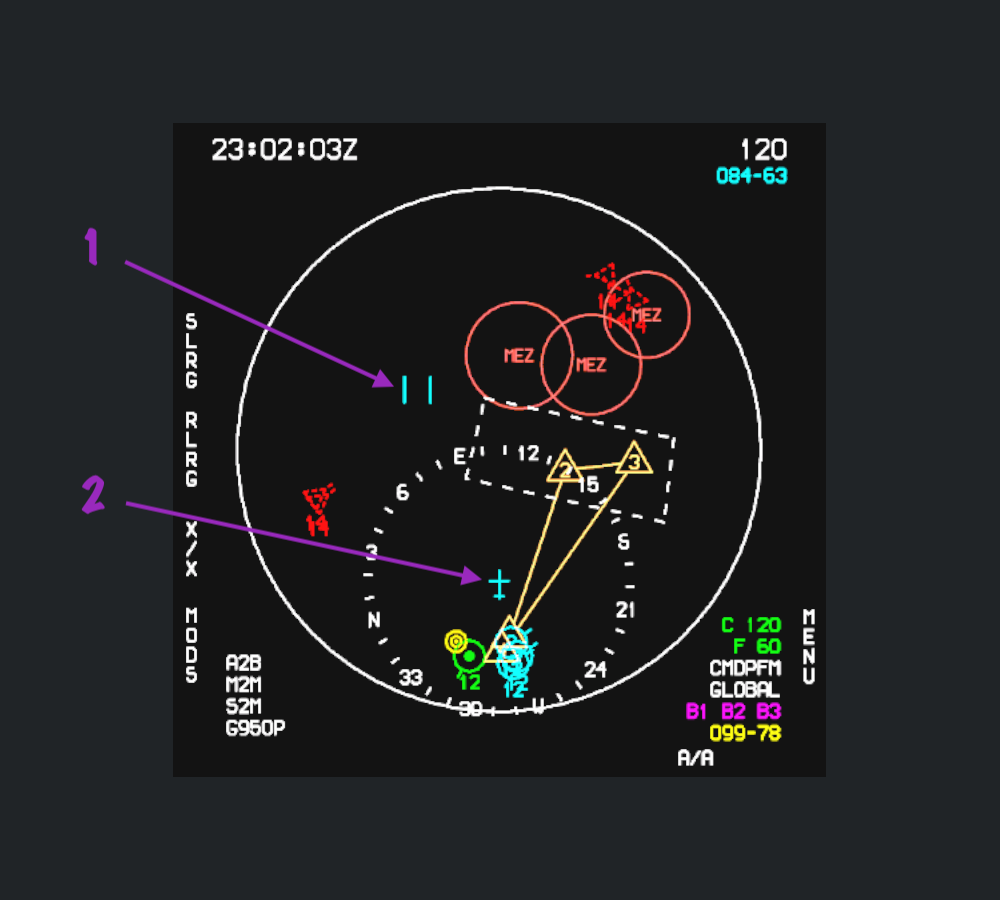
The upper-right 120 represents 120 nautical miles from ownship to the top of the large circle in this view.
EXP mode
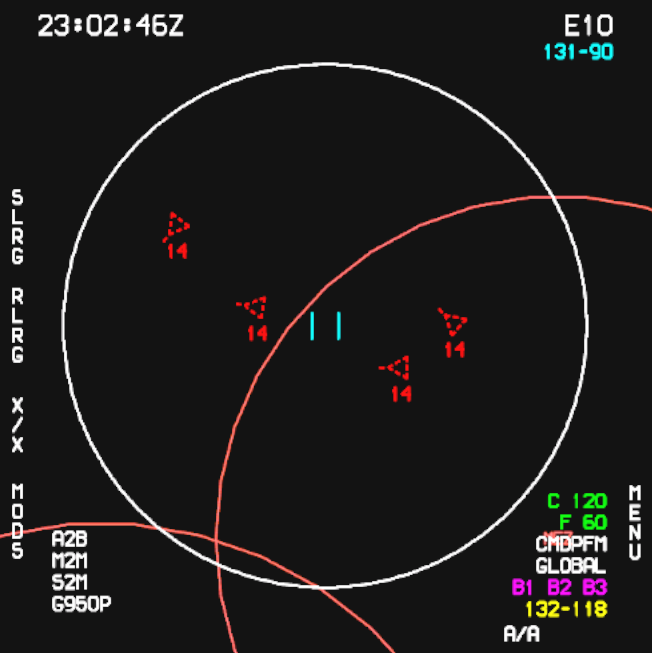
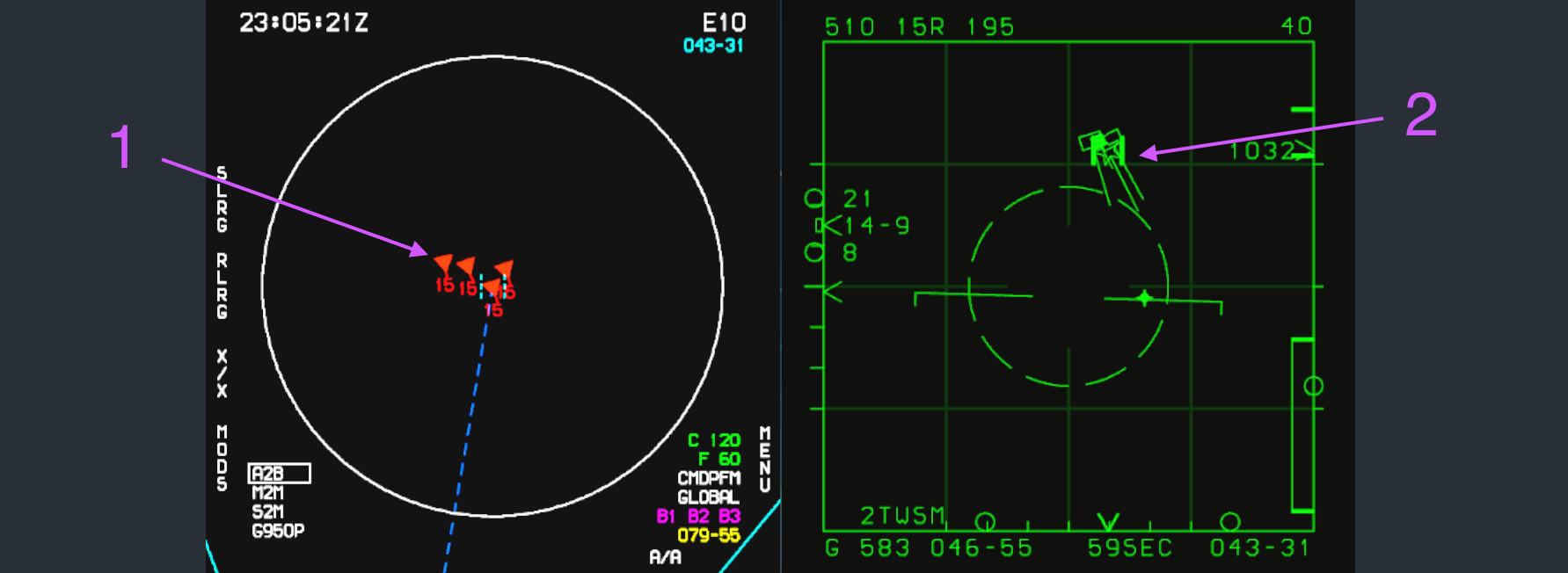
Move Castle LEFT with SIT in control to enter EXP mode. It focuses on an area at a 10 nautical mile scale, indicated by E10 in the upper-right corner. Use the cursor to control the view's offset, enlarging the area you want to inspect.
Flight mode
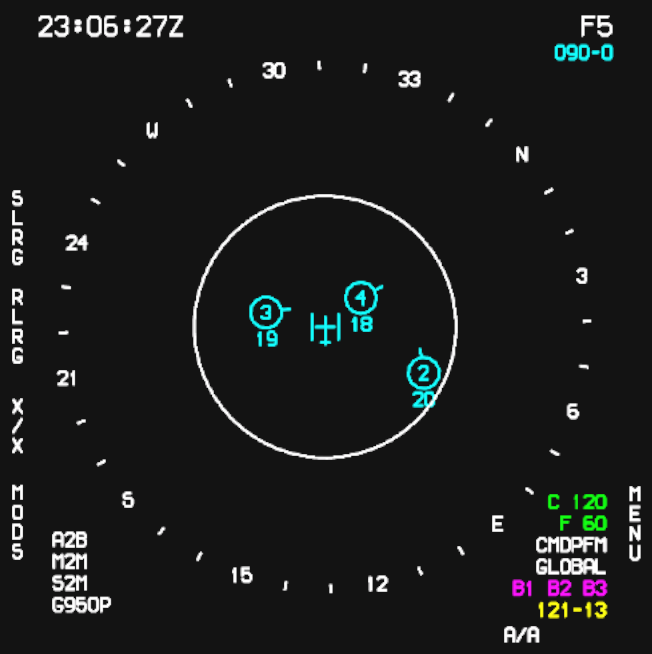
Move Castle DOWN with SIT in control to enter Flight mode. This mode uses a fixed 5 nautical mile scale, shown as F5, to inspect the positions and altitudes of aircraft in your own flight.
Friendly aircraft and Bullseye
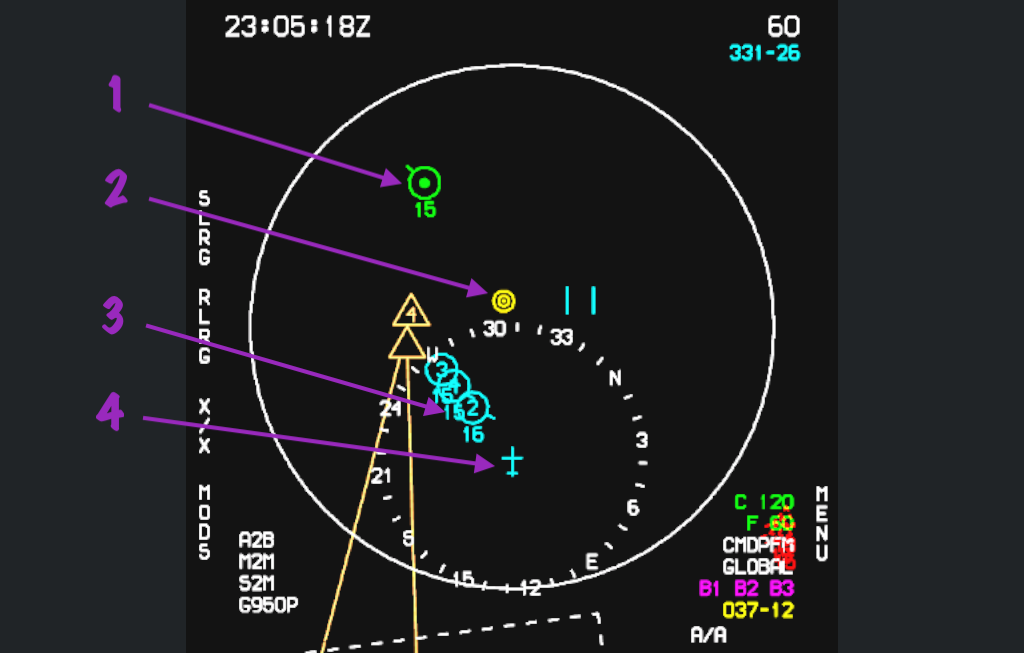
SIT distinguishes aircraft in your own flight from other aircraft in the same mission Package. The example below also shows how to read the cursor's position from Bullseye.
| No. | Symbol | Meaning |
|---|---|---|
| 1 | Green Package aircraft | Another aircraft in the same Package, here an airborne early warning aircraft. The center dot means ownship is receiving its datalink contribution. The 15 below it indicates an altitude of 15,000 feet. |
| 2 | Yellow Bullseye | The common reference point. The yellow lower-right 037-12 places the cursor on bearing 037°, 12 nautical miles from Bullseye. |
| 3 | Cyan wingmen | The other three aircraft in your flight. The numbers inside the symbols are their flight numbers: 2, 3, and 4; the flight lead is number 1. Numbers below the symbols give altitude in thousands of feet. |
| 4 | Cyan ownship symbol | Your aircraft's position on SIT. |
Using SIT with VSD
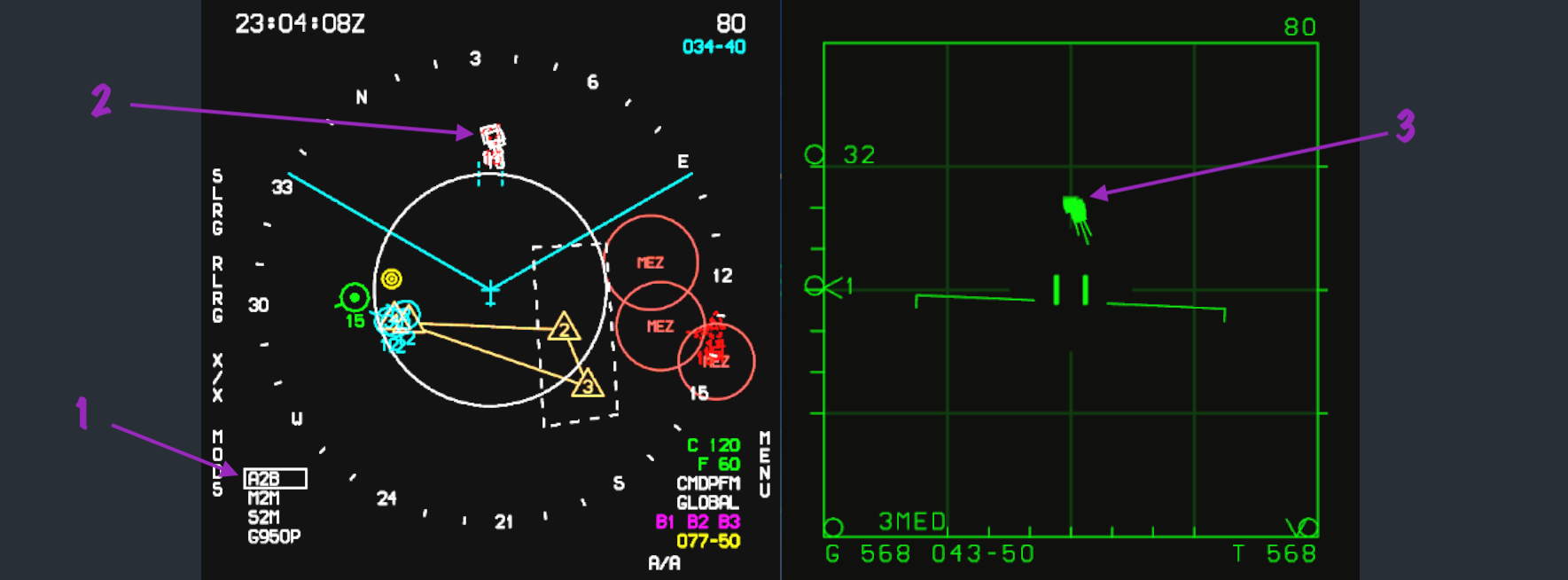
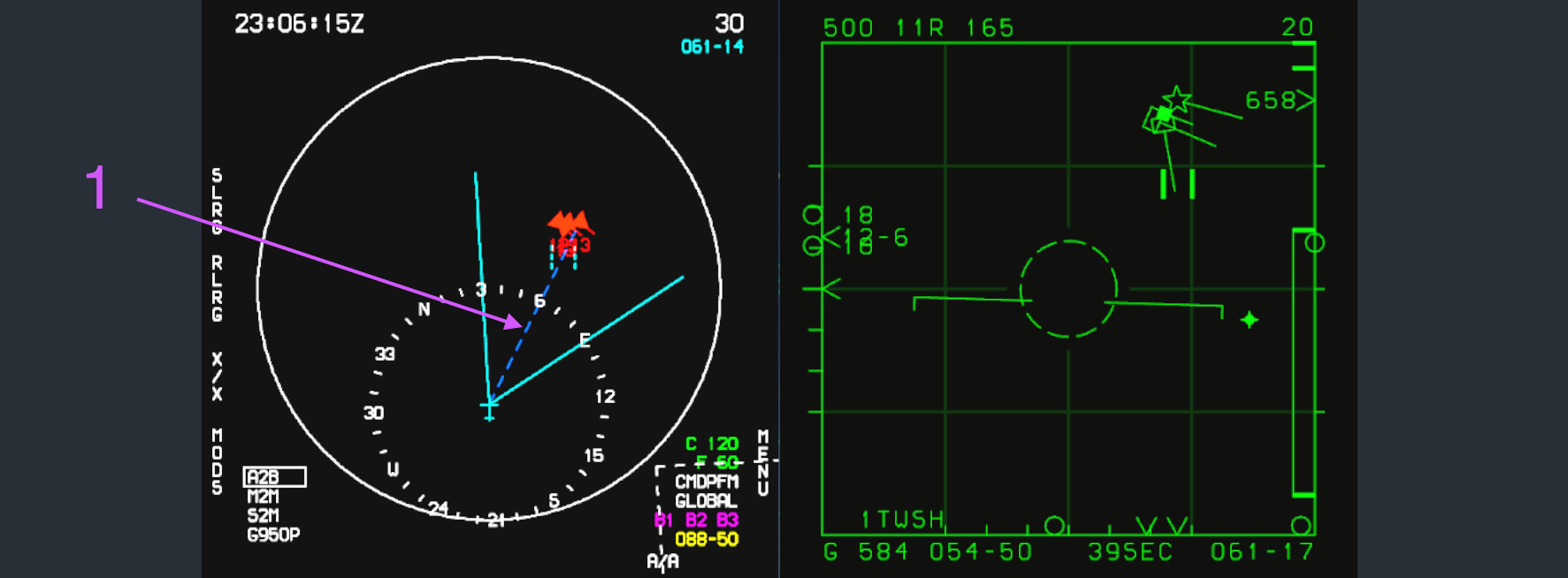
A useful workflow is to use datalink information on SIT to locate the area of interest, then direct radar search on VSD to that position and acquire the targets. The screenshots below show the progression from datalink reports to local radar tracks and correlated tracks.
1. Search the area indicated by datalink
Use the reported target positions on SIT to guide radar search on VSD. The cyan sector on the left-hand SIT represents the radar's search azimuth and range. Use it to compare the radar search area with the reported positions, and check VSD's altitude coverage for the targets' altitude.
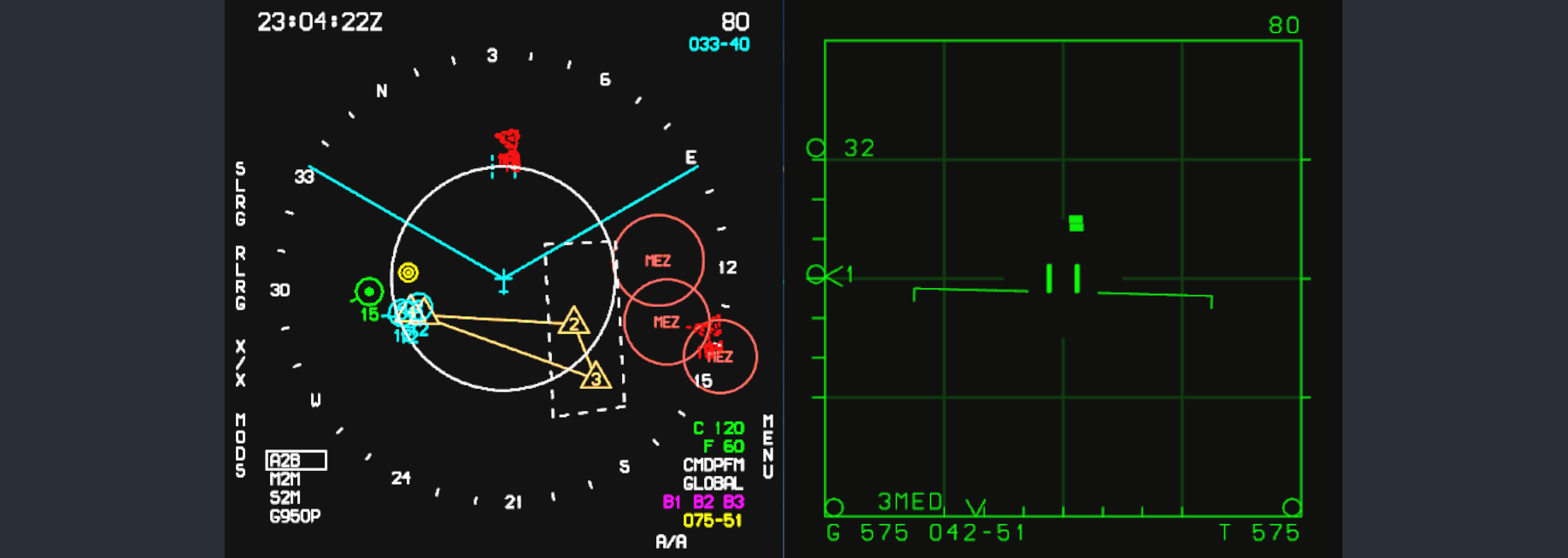
For antenna elevation, search coverage, and acquisition-gate operation, see Radar and VSD: LRS.
2. Read locally acquired tracks
Once the radar establishes tracks, SIT displays them as white solid-outline squares in this example. The solid outline indicates a track obtained by your own radar; white indicates unknown identity. The red dashed datalink symbols remain visible behind the local tracks at this stage.
3. Recognize correlated tracks and PDT
After some time, the track files obtained by your radar and those received through datalink are associated and merged into a single track. SIT then shows a filled target symbol. In this example, the correlated hostile aircraft are red.
The blue dashed line marked 1 points to the PDT (Primary Designated Target).
4. Use EXP to inspect the target flight
Switch SIT to EXP mode to examine the individual aircraft within the target flight. Enlarging the area separates the symbols and makes the flight's distribution and altitude readouts easier to inspect alongside VSD.
| Appearance in these examples | Meaning |
|---|---|
| Dashed target outline | Datalink report. |
| Solid target outline | Track obtained by ownship's radar. |
| White target | Unknown identity. |
| Filled target symbol | Local and datalink tracks have been correlated. |
| Blue dashed line | Direction to PDT. |
AA weapons page
Open AA
With TDC control assigned to VSD, move Castle RIGHT to switch MPCD from SIT to the AA air-to-air weapons page. Castle LEFT in the same control context returns to SIT.
The Castle action depends on which display has cursor control: RIGHT opens AA when VSD is in control, and selects Decenter when SIT is in control.
Read the loadout
AA shows the stores arranged around an aircraft outline, together with gun ammunition and countermeasure quantities.
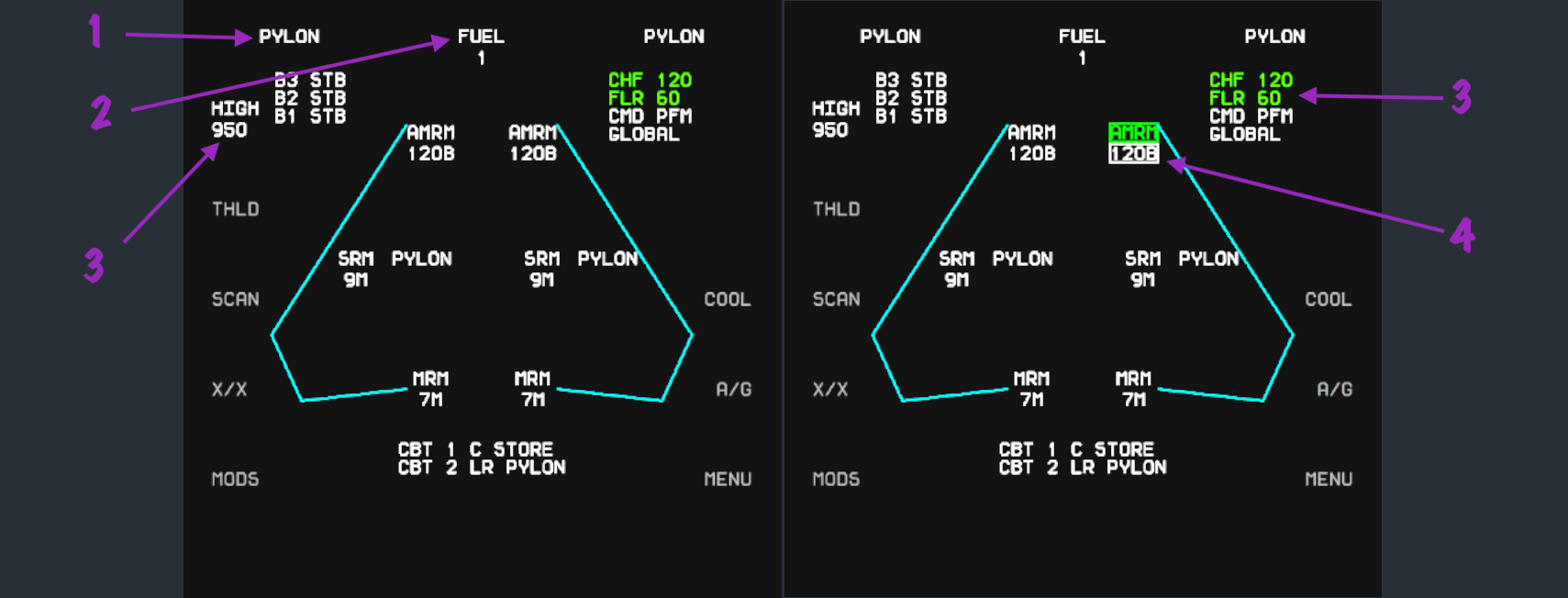
| Callout | Readout | Meaning |
|---|---|---|
| 1, left image | PYLON | An empty pylon with no store mounted. |
| 2, left image | FUEL | A station carrying an external fuel tank. |
| 3, left image | 950 | Gun ammunition remaining: 950 rounds in this example. |
| 3, right image | CHF 120, FLR 60 | Countermeasures remaining: 120 chaff and 60 flares. |
| 4, right image | Highlighted AMRM / 120B | The selected station, shown with a green highlight and a white box around the weapon designation. |
Compare with aircraft setup
The LOADOUT configuration below corresponds to the AA examples above. Compare the store types and ammunition quantities to see how the setup is represented on MPCD.
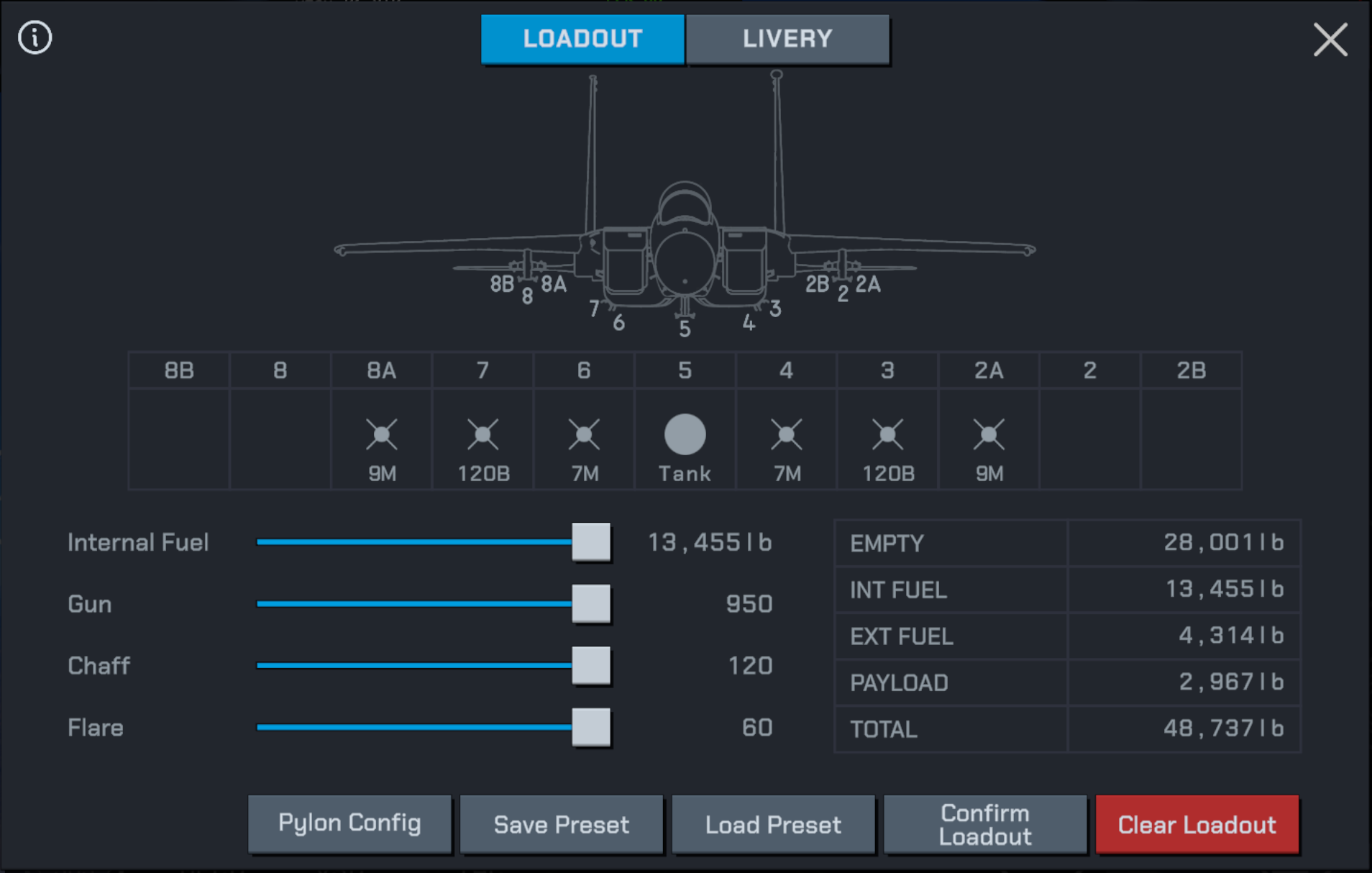
| LOADOUT configuration | Corresponding AA display |
|---|---|
9M at stations 8A and 2A | Two SRM / 9M entries. |
120B at stations 7 and 3 | Two AMRM / 120B entries. |
7M at stations 6 and 4 | Two MRM / 7M entries. |
Tank at station 5 | Center FUEL entry. |
Gun 950, Chaff 120, Flare 60 | Gun and countermeasure quantities on AA. |