Mobile Platform Pilot's Manual
This document applies to iOS/Android mobile devices.
Core Rule: Vertical Grip
This is the fundamental step to establishing precise attitude control:
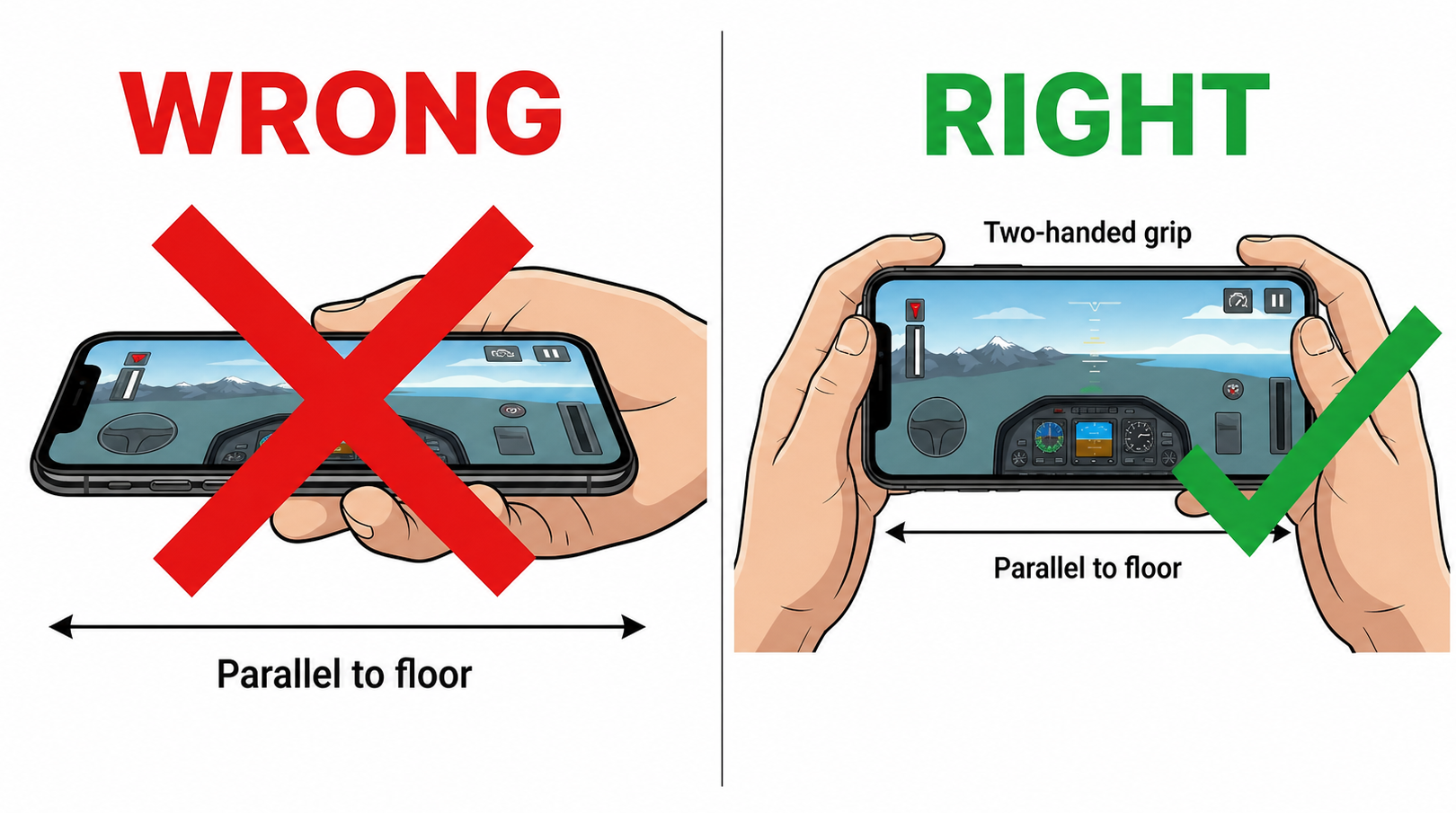
- ❌ WRONG: Holding the phone flat or horizontal. In this posture, the roll and yaw axes couple, making roll input difficult to distinguish reliably.
- ✅ STANDARD: Hold the device with both hands, keeping the screen vertical to the ground (directly facing you).
Why Must the Grip Be Vertical?
Motion control needs the roll axis to remain clear and distinguishable. When the device is laid flat, the roll and yaw axes couple during attitude solving, so the system can no longer reliably tell whether the player is commanding roll or yaw. For motion control, the upright grip must be used as the baseline posture.
Control Inputs
- Pitch Control (Elevators): Tilt the top of the phone backward (toward your body) to pull up and climb; tilt it forward (away from your body) to push down and dive.
- Roll Control (Ailerons): Rotate the phone left or right, similar to turning a steering wheel.
Touch Virtual Joystick
As an alternative to motion control, the mobile version also supports an on-screen virtual joystick. Select the virtual joystick control mode before flight when you want to keep the device stationary.
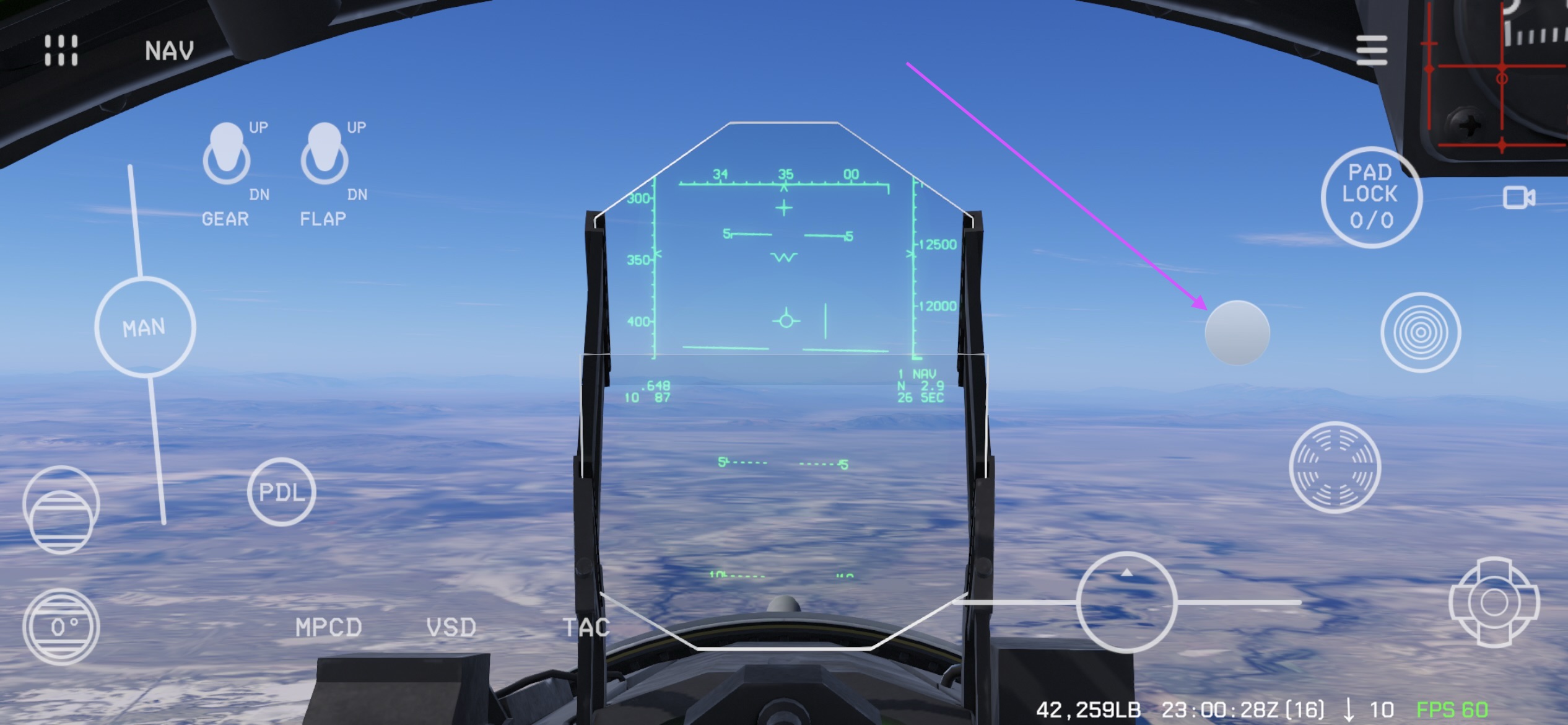
- Pitch Control: Drag the stick down to pull up and up to push the nose down.
- Roll Control: Drag the stick left or right to command the corresponding roll direction.
- Return to Neutral: Release the stick and it automatically returns to the center position.
The vertical-grip and calibration requirements above apply only to motion control. When using the touch virtual joystick, the device can be held in any comfortable viewing position.
Pre-Flight Setup & Precision Tips
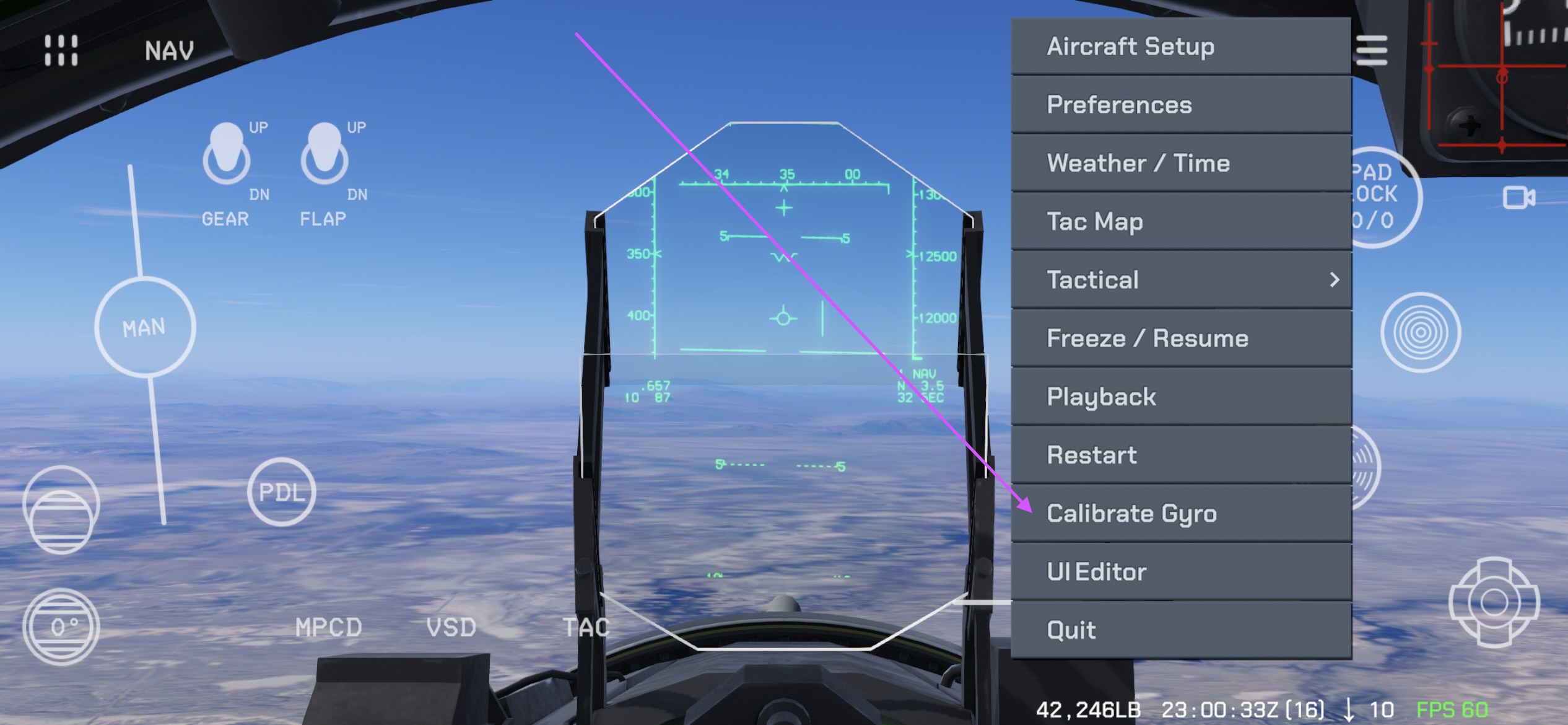
Establish Your Baseline (Calibration): After entering the cockpit or before takeoff, assume your comfortable cockpit seating position, hold the device steadily upright, open the main menu, and tap Calibrate Gyro. The system will record the current angle as your zero-point neutral baseline.
Stabilize Your Controls: During high-precision operations—such as tight formations, aerial refueling, or close-range dogfights—rest your elbows on your knees or armrests. This filters out body tremors and enables sub-degree maneuvering precision.
Touch UI Edit Mode
Tap an empty area of the screen four times in rapid succession to open Touch UI edit mode. You can also select UI Editor from the main menu.
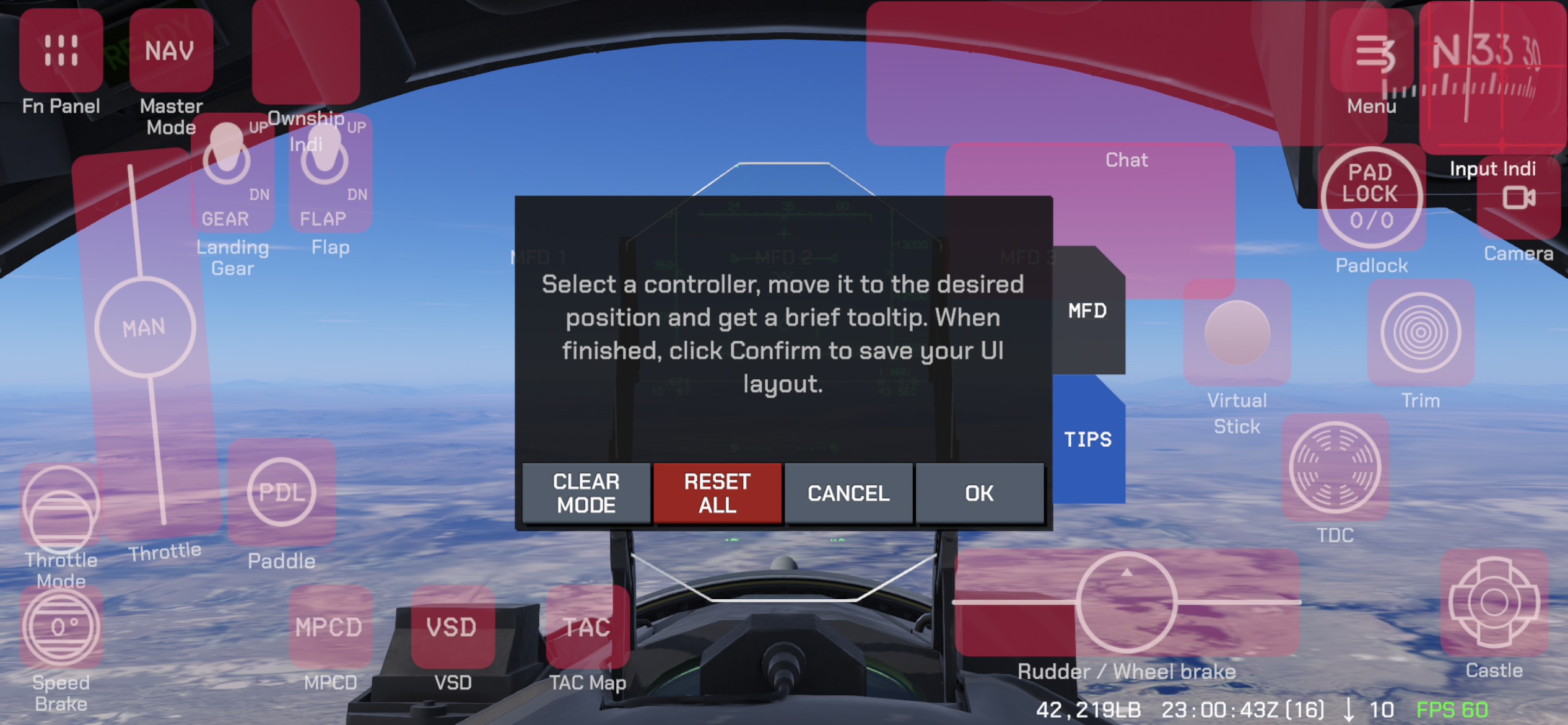
In edit mode, you can:
- Rearrange controls: Select and move controls to customize the screen layout.
- Enter clear mode: Use
CLEAR MODEto switch to the transparent presentation. - Adjust overall opacity: Change the touch UI's overall opacity to reduce obstruction of the flight view.
- Configure floating MFDs: Adjust the size and visibility of floating multifunction displays (MFDs).
For detailed control and editing-panel explanations, see the F-15C Touch UI documentation.